Trail settings: how to shape the trail on your 3D printed map
Learn every TrailMark3D trail setting with screenshots. Choose a raised trail or a carved groove, set trail height and width, and print the trail as a separate slot-fit piece.
In short
Open Trail Settings in the workspace, pick Raised trail, Groove only or No trail, set the height and width, then choose whether the trail prints on the terrain, flush with it, or as a separate piece that press-fits into a slot. Generate the model to check the result in 3D before you download the 3MF or STL files.
The trail is the line your GPX track draws across the terrain, and it is what makes a TrailMark3D print yours. The Trail Settings section decides how that line is built: raised on top of the mountains, carved into them, or left out. It also sets how thick the trail is and whether it prints as one piece with the terrain or as its own piece in a second color. This guide walks through each control in order, with screenshots of the real panel and of the finished 3D model.
Open Trail Settings on the sample trail
Open the Trail Settings
Upload a GPX file from the home page, or use the sample trail. The workspace opens with the 2D map on the right and the settings panel on the left. Scroll the panel to Trail Settings, or use the button above: it loads the sample trail and opens the section for you, highlighted in green.

Choose how the trail is generated
Trail Generation has three cards. Pick one before you tune anything else, because it decides which other controls appear.
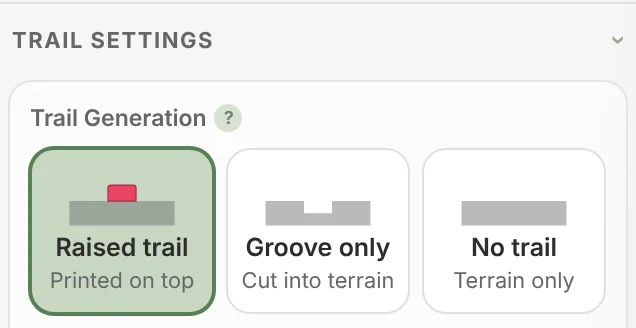
- Raised trail (printed on top) builds the route as a ribbon that rises above the terrain. It is the most visible option and the one to use for a multi-color print.
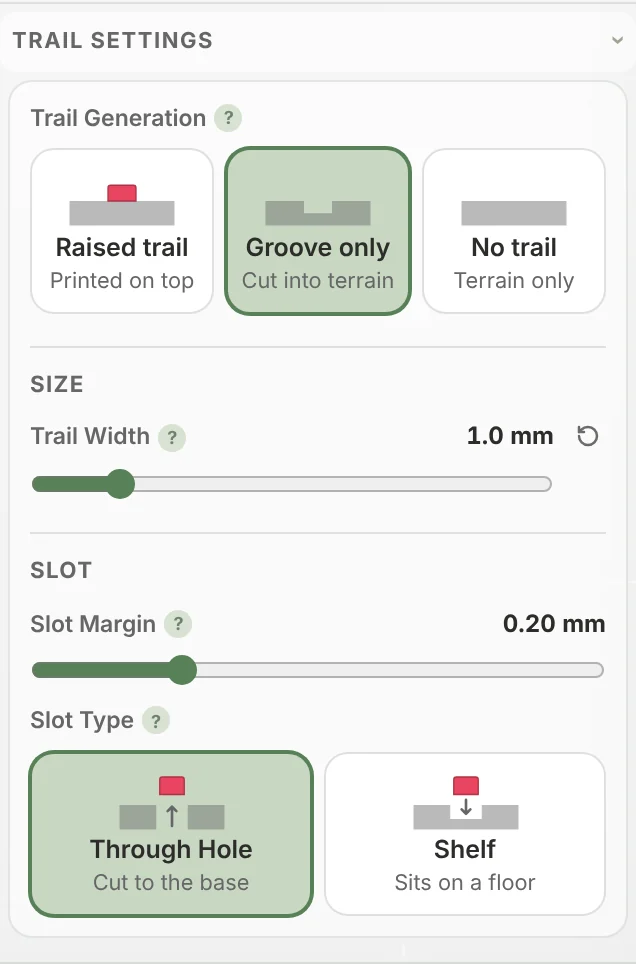
- Groove only (cut into terrain) carves the route into the surface as a channel, with no trail piece. With the Through Hole slot type the channel goes all the way through; Shelf keeps a floor under it. It suits a single-color print where you want the route to read as a shadow line.
- No trail (terrain only) builds just the landscape, for a clean topographic model.
Set the trail height and width
The Size group sets the trail's cross-section in millimeters, at the printed scale of the model.
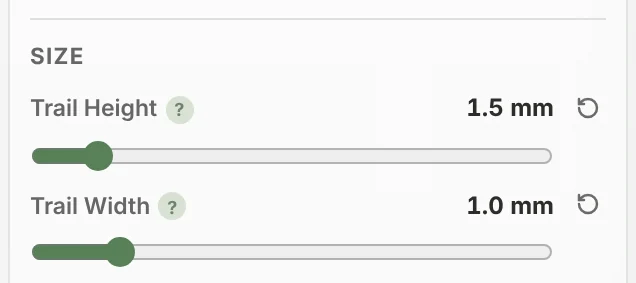
- Trail Height is how far the trail rises above the terrain, from 0.5 to 10 mm. The default is 2.0 mm. A taller trail is easier to see and to feel with a finger.
- Trail Width is how wide the ribbon is, from 0.3 to 5 mm. The default is 1.5 mm. Wider trails print more reliably but can cover fine terrain detail.
Choose how the trail prints
How it prints decides how the trail joins the terrain.
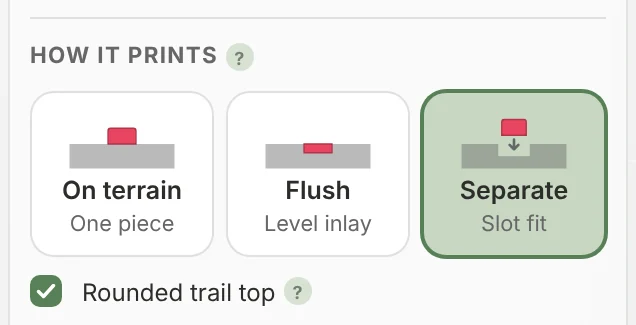
- On terrain (one piece) fuses the trail to the model. One object, one print, ideal for a printer with an AMS or another multi-material system that can color the trail.
- Flush (level inlay) sinks the trail so its top is level with the surface. It reads as a flat colored inlay with no ridge. The depth is a fixed 0.4 mm skin, so there is nothing to set.
- Separate (slot fit) prints the trail as its own piece and carves a matching slot into the terrain. Print the terrain in one filament and the trail in another, then press the trail in. This is the way to get a two-color model on a single-color printer.
Tick Rounded trail top for a domed trail instead of a flat-topped one. It looks smoother and slides into a slot more easily.
Fit the slot for a separate trail
When the trail prints separately, or when you chose Groove only, the Slot group appears.
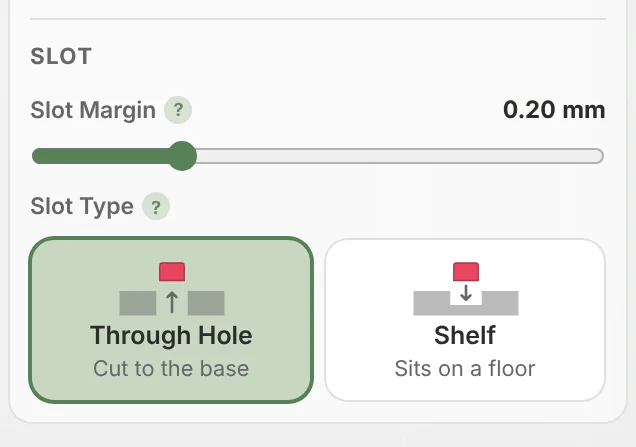
- Slot Margin is the clearance between the trail piece and the slot walls, from 0 to 0.8 mm. The default 0.2 mm is a snug press-fit on most printers. Raise it if the trail will not go in, lower it if it falls out.
- Slot Type sets the slot's floor. Through Hole cuts all the way to the base, so the trail drops in from below. Shelf (Pro) leaves a flat floor inside the slot at the Slot Floor Height you choose, so the trail piece sits at a fixed height.
With Groove only, the panel keeps just the width and the slot controls, because there is no trail piece to size:
Generate the model and check the result
Click Generate 3D Model at the bottom of the panel. When the model is ready the workspace switches to the 3D view, where you can orbit, zoom and compare the trail against the terrain before you download.
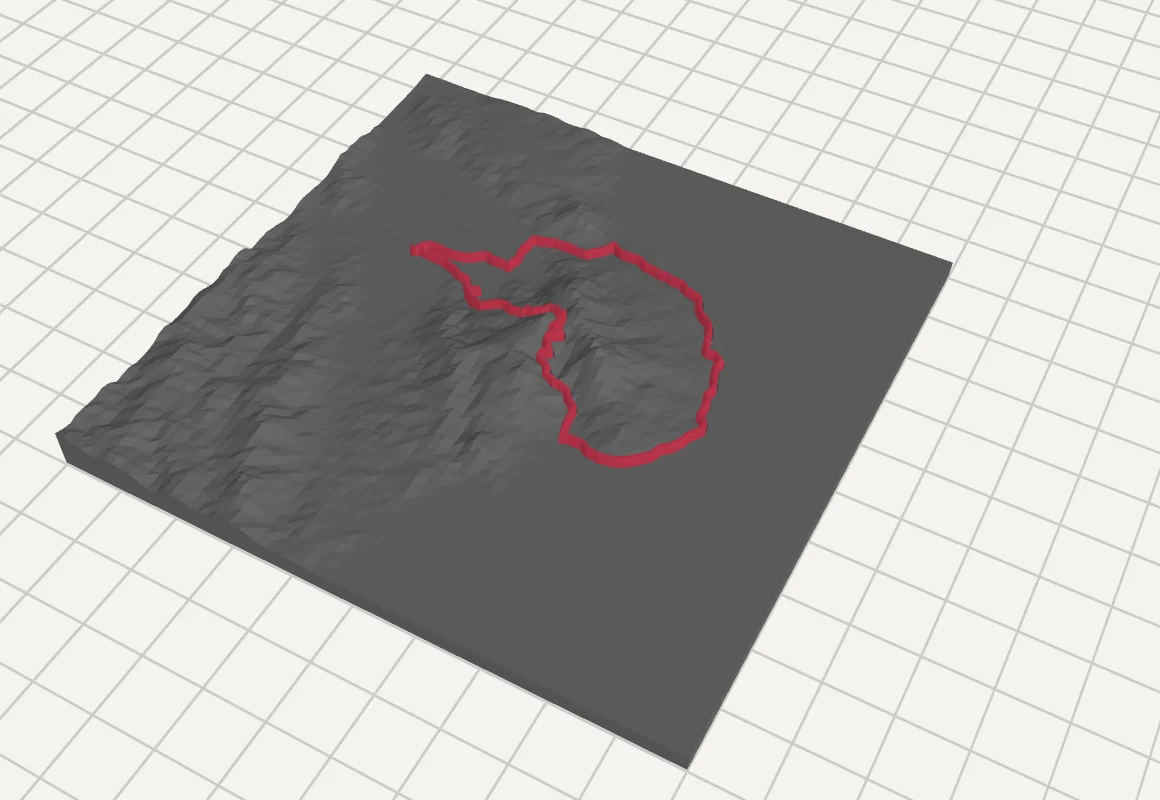
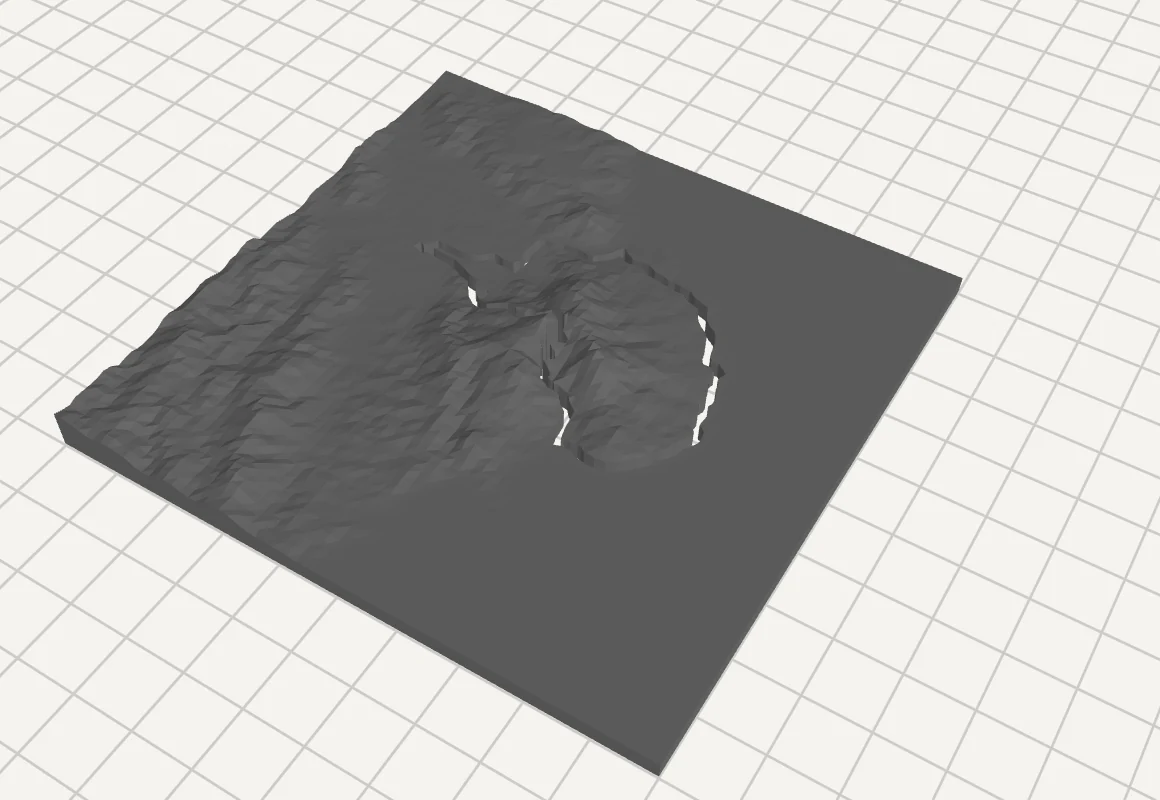
Download 3MF for a multi-color print with the trail already assigned its own color, or pick STL from the arrow menu to get the terrain, the trail and the combined model as separate files. Changed a setting? The panel tells you the model needs regenerating, and one click rebuilds it.
Recommended trail settings
| Goal | Trail Generation | How it prints | Height × width |
|---|---|---|---|
| Multi-color print with an AMS | Raised trail | On terrain | 1.5 × 1.2 mm |
| Two colors on a single-color printer | Raised trail | Separate, rounded top | 2.0 × 1.5 mm |
| Smooth inlay with no ridge | Raised trail | Flush | fixed depth × 1.2 mm |
| One filament, subtle route | Groove only | none | width 1.0 mm |
| Small model, under 100 mm | Raised trail | On terrain | 1.0 × 1.0 mm |
Frequently asked questions
What is the best trail width for 3D printing?
Use at least 1.0 mm with a 0.4 mm nozzle, and 1.2 to 1.5 mm for a separate trail piece, so the slicer can print two or more solid lines. Very thin trails can disappear or break.
How do I print the trail in a different color without an AMS?
Choose Raised trail, set How it prints to Separate, and download the files. Print the terrain and the trail piece in two filaments, then press the trail into its slot. Raise the Slot Margin if the fit is too tight.
Why is the trail not shown on my model?
Check that Trail Generation is not set to No trail, and that you generated the model again after changing it. A model made from a searched place has no GPX track, so it never has a trail.
Can I remove one track from a GPX file with several tracks?
Yes. When a file holds more than one track, Trail Settings lists every track with an eye button. Tap the eye to leave a track out of the model, and tap it again to bring it back.
Do trail settings change the terrain?
Only where the trail meets it. Groove only, Flush and Separate cut into the terrain along the route; everything else about the terrain is set in Terrain Detail and Map Features.
Is it free?
Yes. With a free account you can make 5 models a day and download them as STL or 3MF. Every trail setting in this guide is free except the Shelf slot type, which needs Pro; Through Hole works on every plan. See pricing for what Pro adds.