Landcover colors for 3D printed maps: forests, meadows, rock and snow in real-world colors
Color a 3D printed terrain map by what covers the land. Use TrailMark3D's Landcover color overlay for forest, grassland and rock, recolor each with a Bambu Lab filament, or sample real colors from satellite imagery, then download a multi-color 3MF.
In short
In the TrailMark3D workspace, open Map Features and switch on Landcover. Color overlay paints forest, grassland, farmland, rock, snow and other land types from open map data; pick how many Print colors to use, recolor each swatch with a Bambu Lab filament, and choose which types print under Configure Landcover Features. Satellite samples real colors from Copernicus Sentinel-2 imagery instead. Click Generate 3D Model and download the 3MF, with each color as its own part. Color overlay is free with up to 2 print colors; more colors and Satellite are Pro.
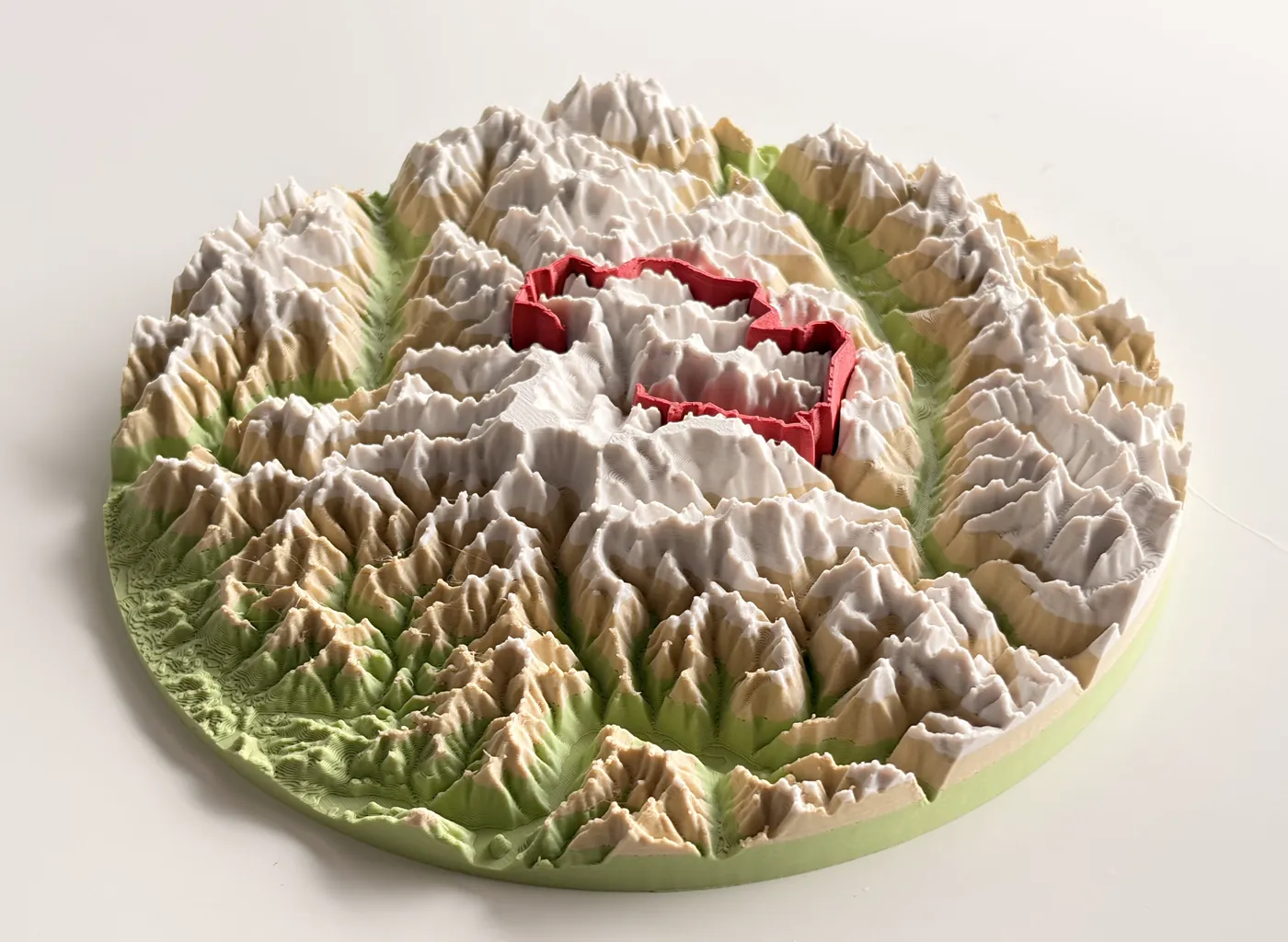
A terrain map printed in one color shows the shape of the land. Add landcover colors and it shows what the land is: dark forest in the valleys, pale meadows above the tree line, bare rock and scree on the peaks. TrailMark3D colors the surface of a 3D terrain model from open map data or from satellite imagery, and keeps each color as its own part in the 3MF, ready for a multi-color printer such as a Bambu Lab AMS or a Prusa XL. This guide colors the Tre Cime di Lavaredo in the Italian Dolomites, three limestone towers above forests and alpine meadows.
Open the Tre Cime di Lavaredo in the workspace
Open your place or trail
Search a place on the TrailMark3D home page, or upload the GPX of a hike, and the workspace opens with a tile on the map. The link above opens a 10 km square around the Tre Cime. Landcover works on any single tile: a mountain, a national park, a lake district or the trail you walked.
Switch on Landcover and preview it
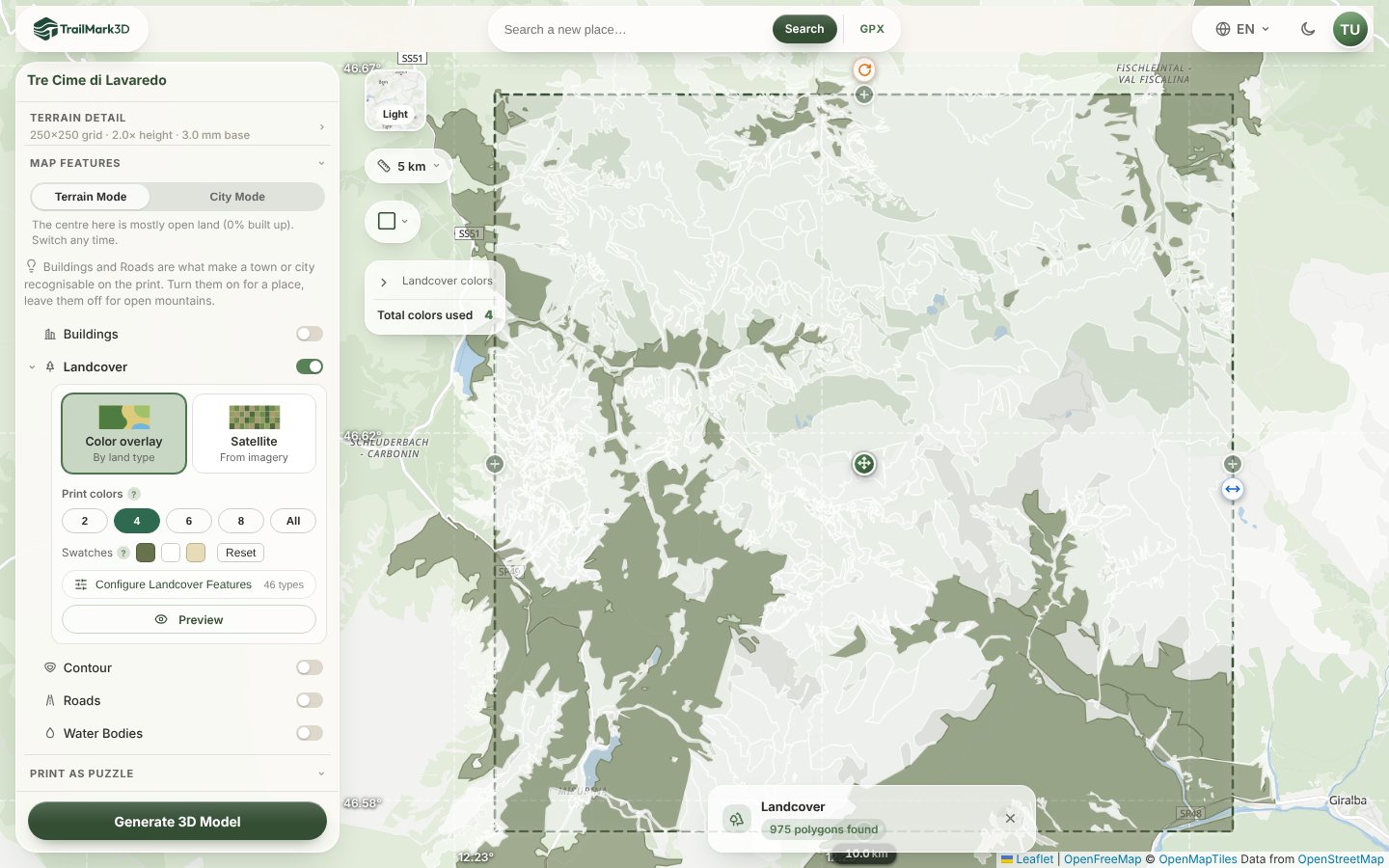
Open Map Features and switch on Landcover. Two cards appear: Color overlay, by land type, and Satellite, from imagery. Keep Color overlay and click Preview: the land types inside the tile are drawn on the map, here the forests around Misurina and below the towers. Print colors sets how many landcover colors the model may use; similar types share a color, so 4 colors still separate forest, open land and rock. The Swatches row shows the colors in your palette: click one to recolor every type that uses it with a Bambu Lab filament, such as Dark Green for forest and Desert Tan for heath and scrub. Reset puts the automatic palette back.
Choose which land types print
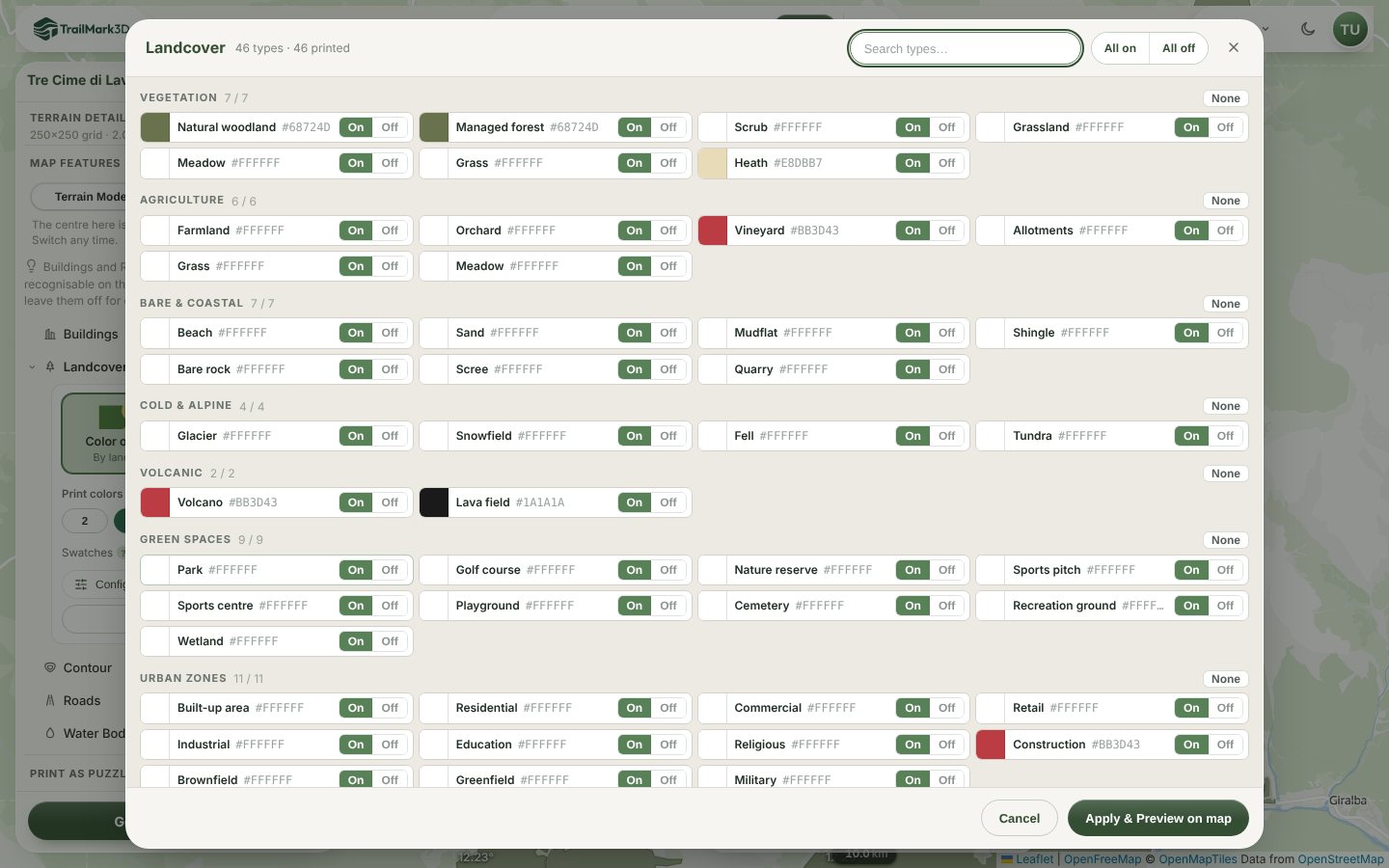
Click Configure Landcover Features to see every land type in groups: vegetation, agriculture, bare and coastal, cold and alpine, volcanic, green spaces and urban zones. Each type has its own color and an On / Off switch, and All on and All off set a whole list at once. Turn off types you don't want on the print, such as farmland in a mountain model or built-up areas in a park, then click Apply & Preview on map.
Generate the colored model
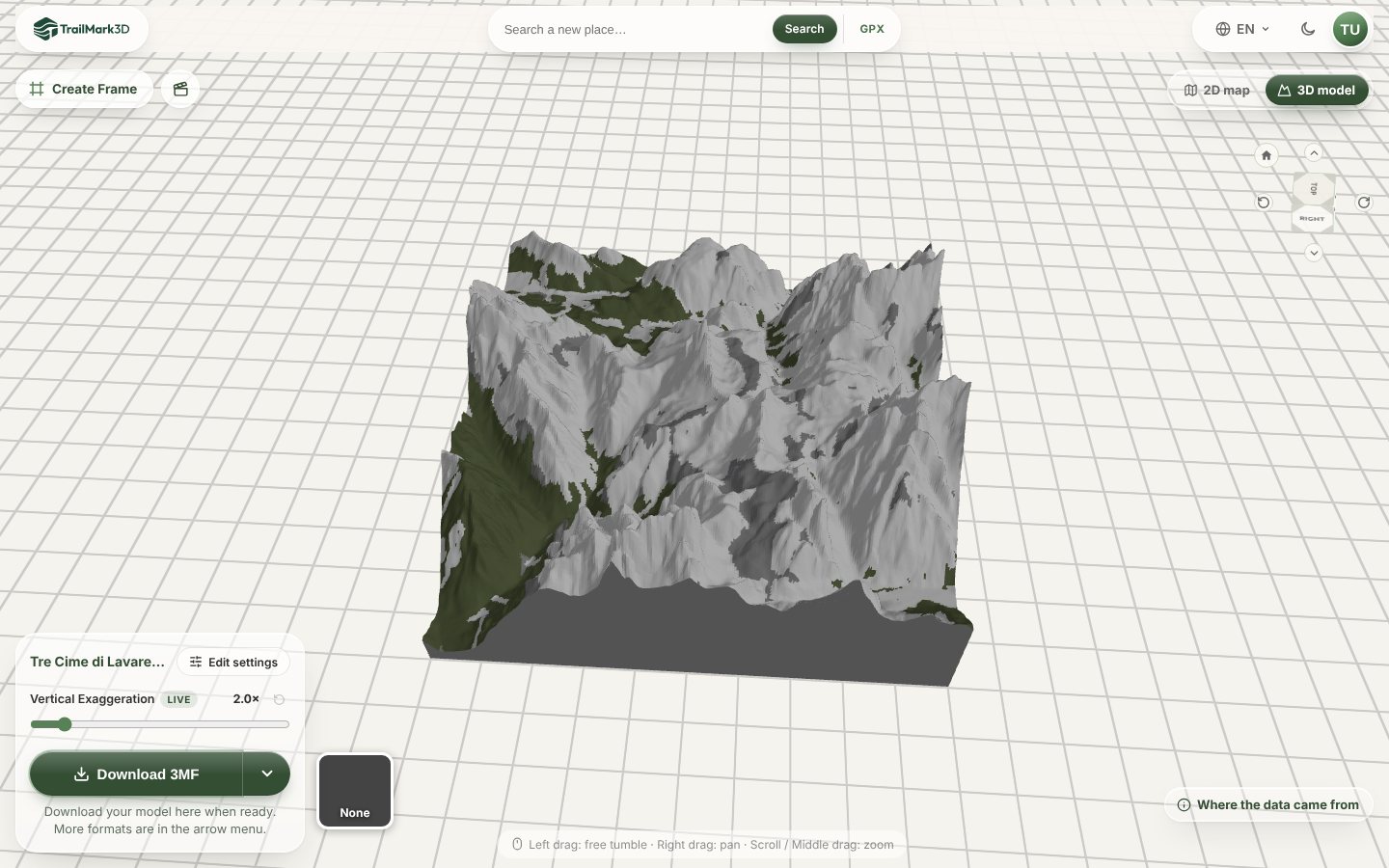
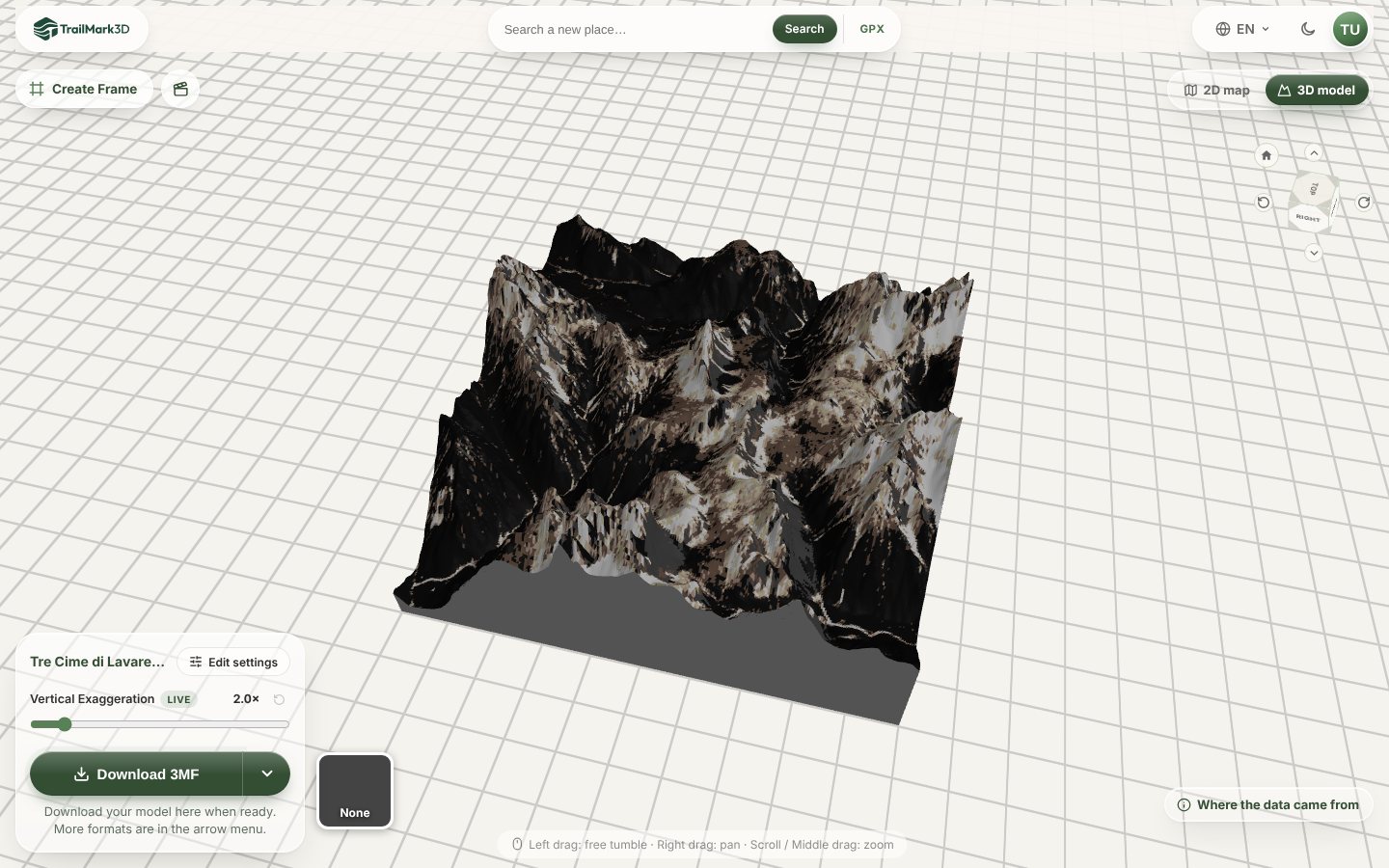
Open Terrain Detail if you want to change the Vertical Exaggeration (2× is the default, 1.3× keeps the Dolomites close to life) or the Print Size, then click Generate 3D Model. The model opens in the 3D viewer in its print colors, with the forest in green on the lower slopes and the open meadows and rock above.
Or sample real colors with Satellite
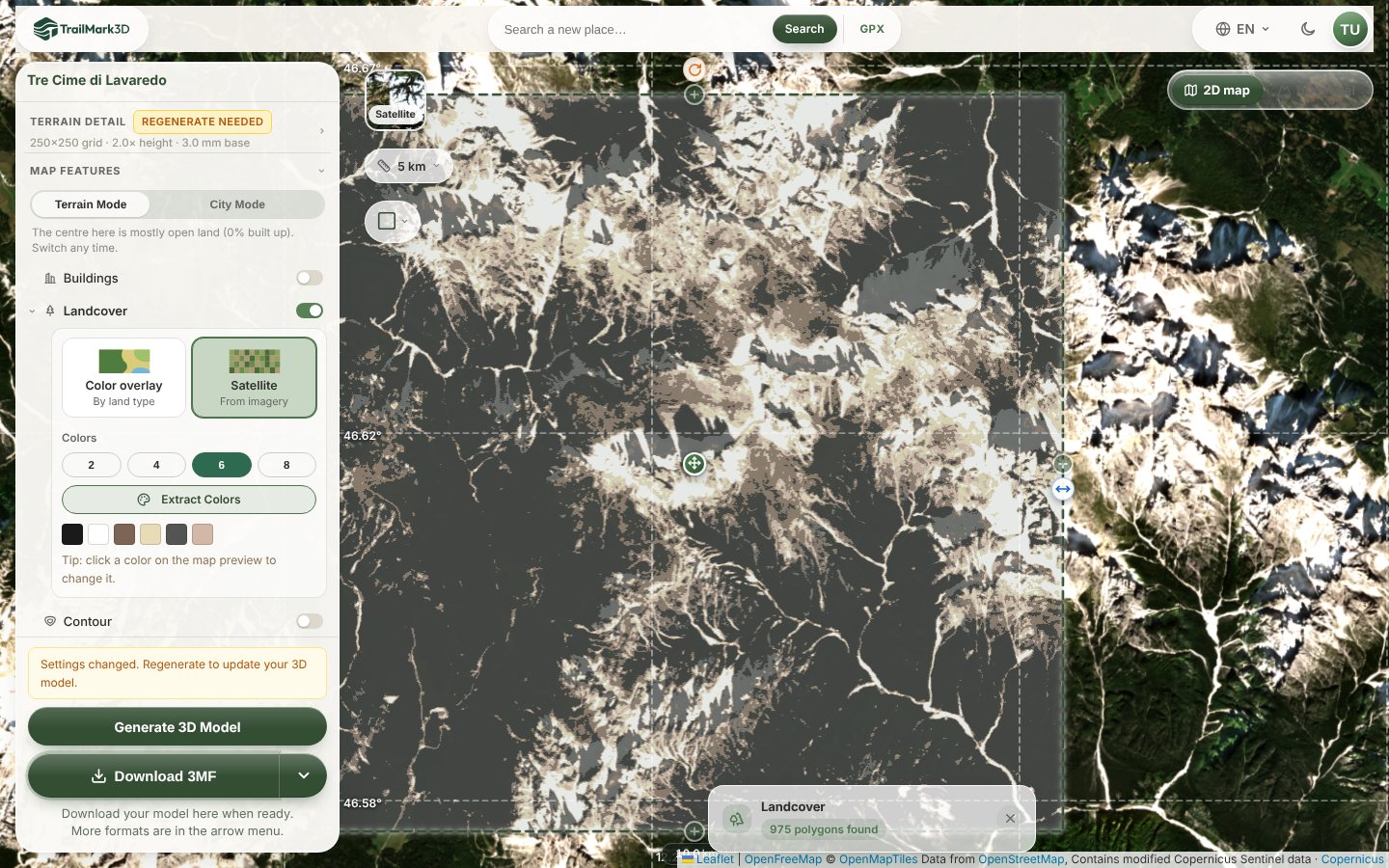
Back on the 2D map, pick the Satellite card. It samples the colors of the land from Copernicus Sentinel-2 imagery and reduces them to the number of filaments you choose under Colors (2 to 8), snapped to Bambu Lab colors. Click Extract Colors to build the palette: the map shows the tile as it will print, and you can click a color on the map preview to change it. Satellite catches what the open map data leaves out, such as scree fans, snow patches and the pale limestone of the Dolomites.
Generate and download the 3MF
Click Generate 3D Model again to rebuild with the satellite palette, then Download 3MF. Each color is its own part in the 3MF, so your slicer maps them straight to filaments; with a Bambu Lab printer, Open in Bambu Studio in the download menu sends it there (Open a 3MF in Bambu Studio). Print it flat with no supports.
Frequently asked questions
Is it free?
Yes. Landcover Color overlay is free with up to 2 print colors, and so are previews of more colors and of Satellite: Extract Colors is free to try. Downloading a model with more than 2 landcover colors, or with Satellite colors, needs Pro ($10 a month). A free account also gets 5 models a day and STL and 3MF downloads for personal use. See pricing.
What is the difference between Color overlay and Satellite?
Color overlay colors the land by type, from OpenStreetMap and Overture Maps data: every forest is the same green, every meadow the same color. Satellite samples the real colors seen from space, so it shows shading, scree and snow the map data doesn't have, but it can also pick up shadows and clouds.
Can I use my own filament colors?
Yes. Click a swatch under Swatches to pick a Bambu Lab filament, or use the Color tab for any color. Every land type that shares the swatch changes with it. In Configure Landcover Features you can also set each type on its own.
Does landcover work with a trail and water?
Yes. The trail, water, roads and buildings each have their own color on top of the landcover, and each counts as one more print color. Landcover is for single-day models; multi-day trips can't use it yet.
Do I need a multi-color printer?
It helps, but it isn't required. With 2 colors you can swap filament by hand, and you can always print the terrain in one color and paint it. The 3MF keeps every color as its own part either way.
Where does the landcover data come from?
Color overlay uses open land cover data from OpenStreetMap and Overture Maps; Satellite uses Copernicus Sentinel-2 imagery at about 10 m per pixel. Where the data came from, at the bottom right of the 3D viewer, lists the sources for each model.