How to open a 3MF file in Bambu Studio and print a multicolor map with the AMS
Open a TrailMark3D 3MF in Bambu Studio with every part already on its own filament and in its own color. Check the parts, pick your printer, slice, map the filaments to your AMS and print a multicolor terrain map.
In short
Download the 3MF from TrailMark3D, or use Open in Bambu Studio from the download menu, and open it with File › Open. Bambu Studio opens it as a project on a Bambu Lab X1 Carbon, with the land, the water and the trail as parts of one object, each on its own filament in the map's colors, and painted contour lines on their own filament too. Pick your own printer in the Printer box (the filaments and colors stay), slice, check the colors in Preview, then match each filament to an AMS slot when you send the print. Downloading the 3MF is free with an account.
A 3MF is the file that carries a TrailMark3D map into Bambu Studio in color. The land, the water and the trail arrive as separate parts, each already assigned to its own filament in the color you picked, so with an AMS the slicer is ready to print as soon as the file opens. This guide opens a 14 km model of Crater Lake, Oregon, with Wizard Island and contour lines, in Bambu Studio and takes it to the printer.
Open the download menu on the sample trail
Make your model and get the 3MF
Generate a model in TrailMark3D: a trail from your GPX, a mountain, a lake or a city (see GPX to 3D print or 3D map of any place). Under the 3D view, click Download 3MF. Or open the arrow menu beside it and choose Open in Bambu Studio, which hands the file straight to Bambu Studio on your computer. The first time, Bambu Studio asks whether to open a file from a site that isn't on its trusted list; answer yes.
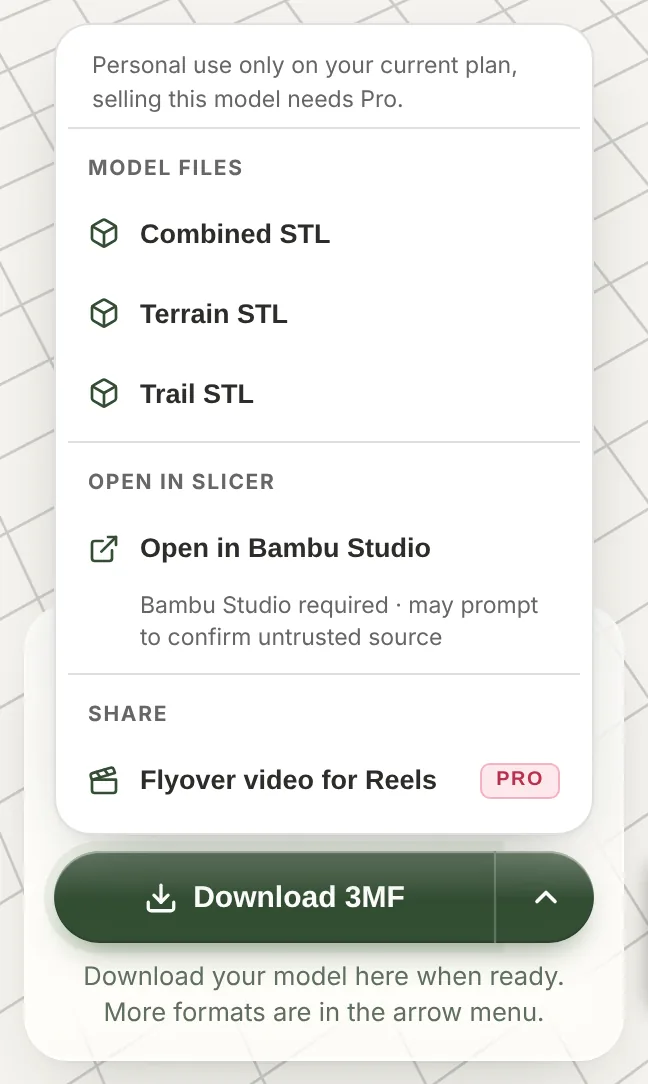
Open the 3MF in Bambu Studio
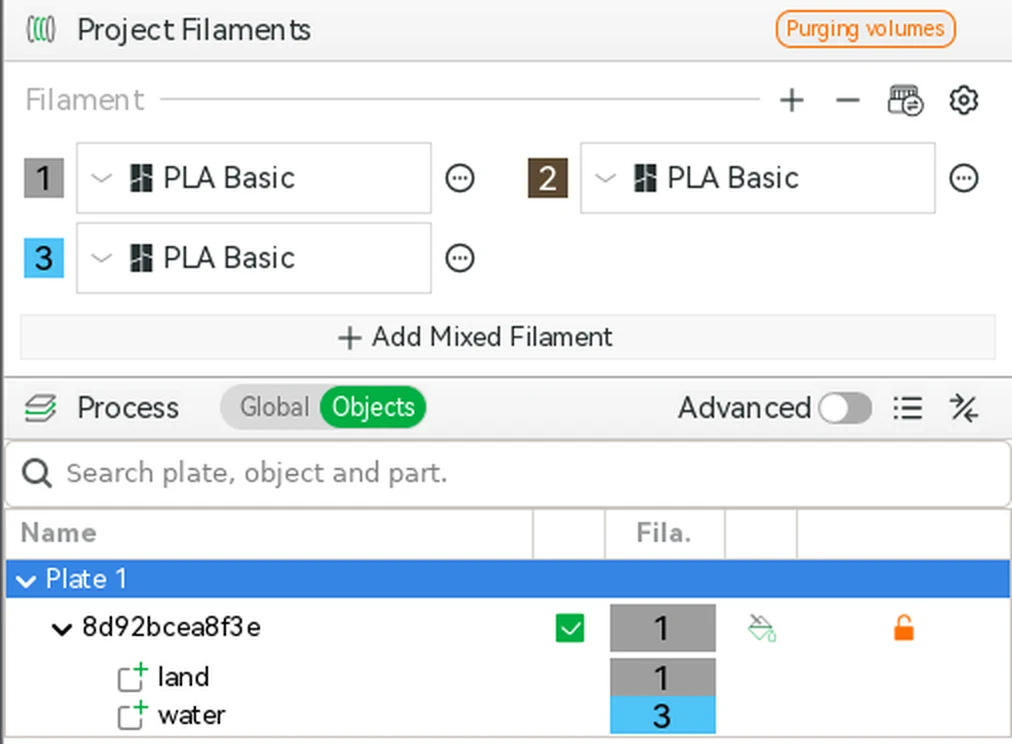
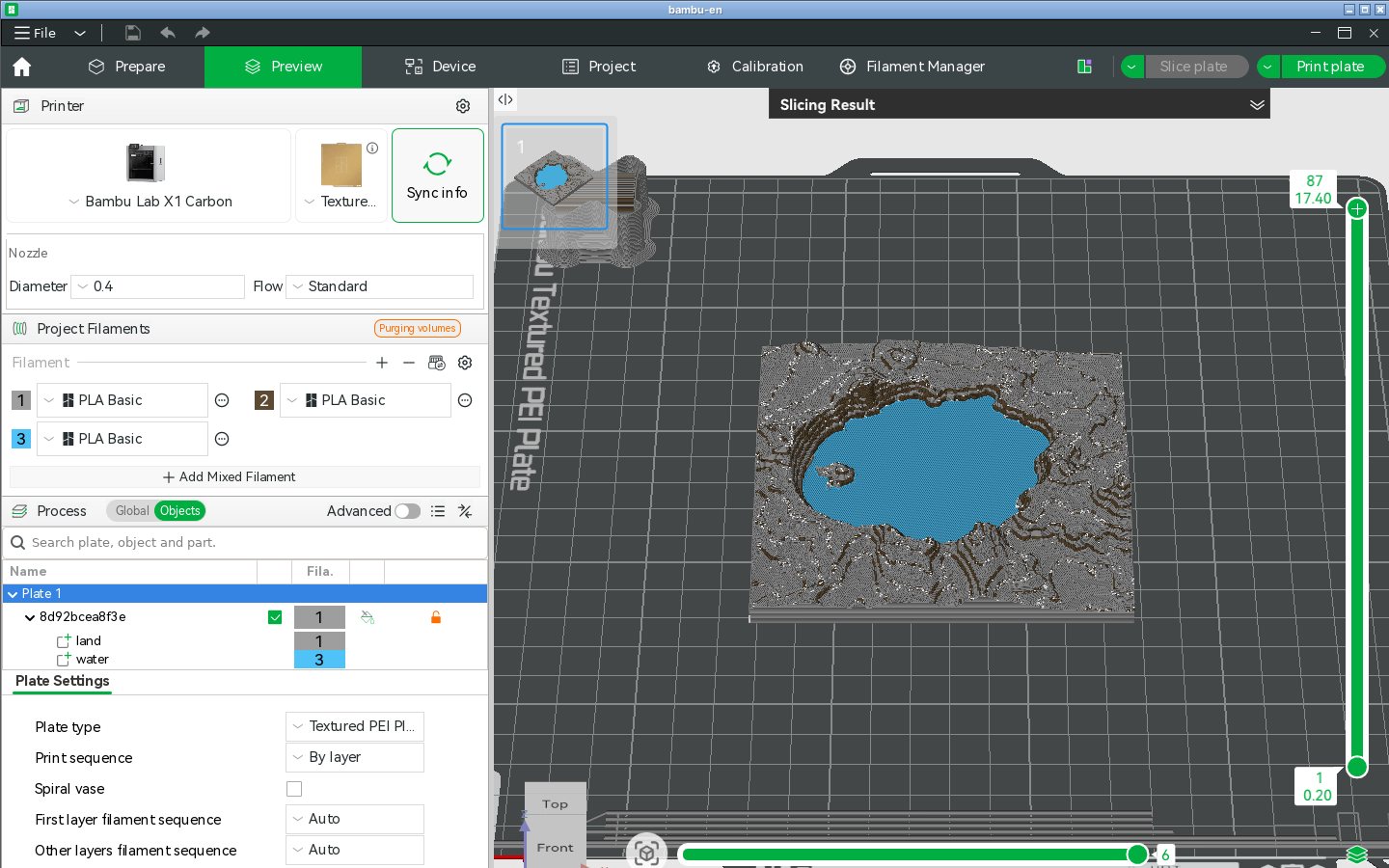
If you downloaded the file, open it in Bambu Studio with File › Open Project, drag it onto the window, or double-click it. Bambu Studio opens it as a project, with no questions: the model sits on the plate of a Bambu Lab X1 Carbon with a 0.4 mm nozzle, and the Project Filaments list already holds one filament per color of the map. Here filament 1 is the grey land, 2 the brown contour lines and 3 the blue lake.
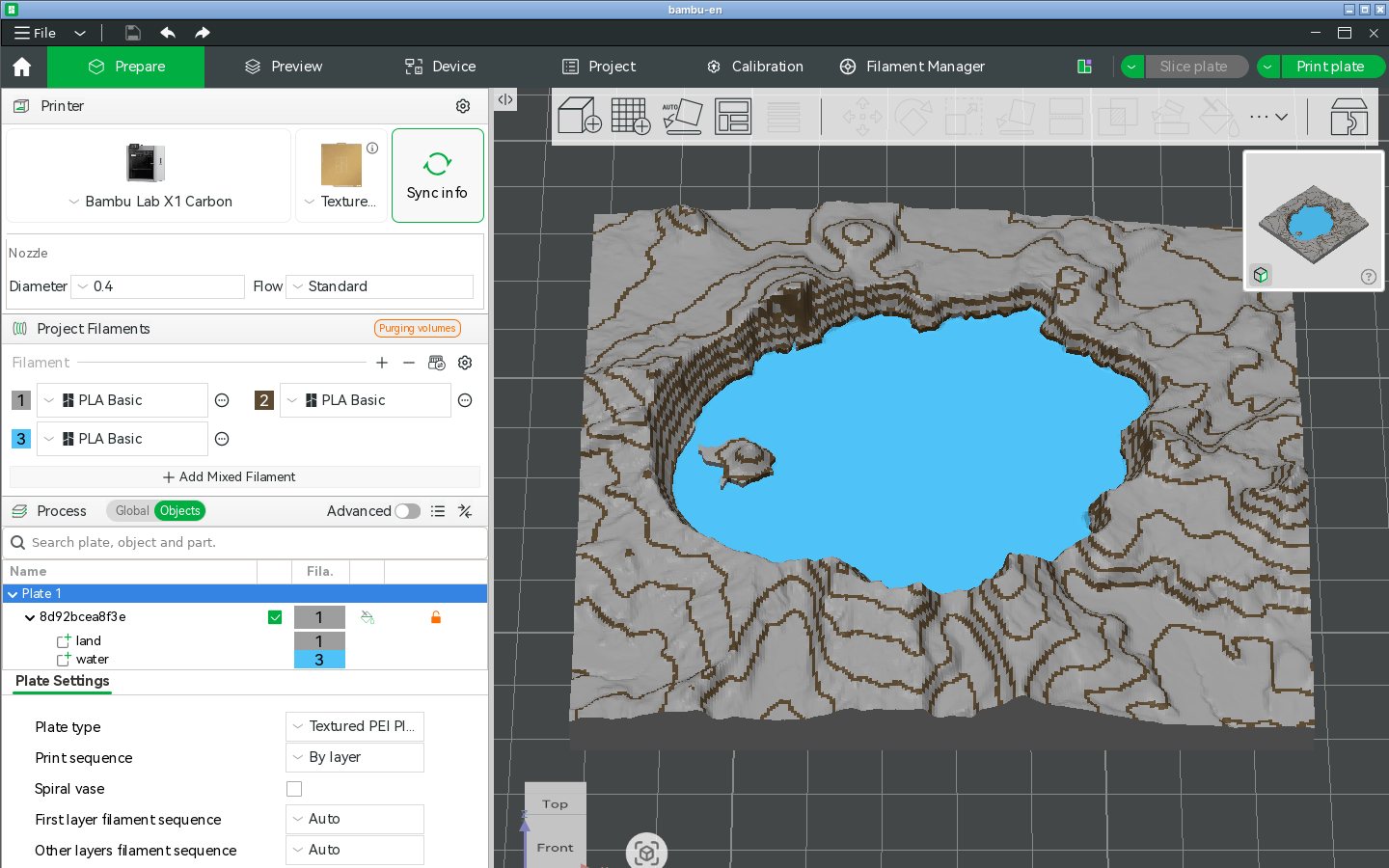
Check the parts and their filaments
In the object list, open the object to see its parts: land on filament 1 and water on filament 3, plus trail when you made the model from a GPX. The contour lines are painted onto the land, so they show in the 3D view on filament 2 rather than as a part. To change a color, click the filament's swatch in Project Filaments; to move a part to another filament, click its number in the object list. Every part stays exactly in place on the terrain, so don't move or scale them one by one.
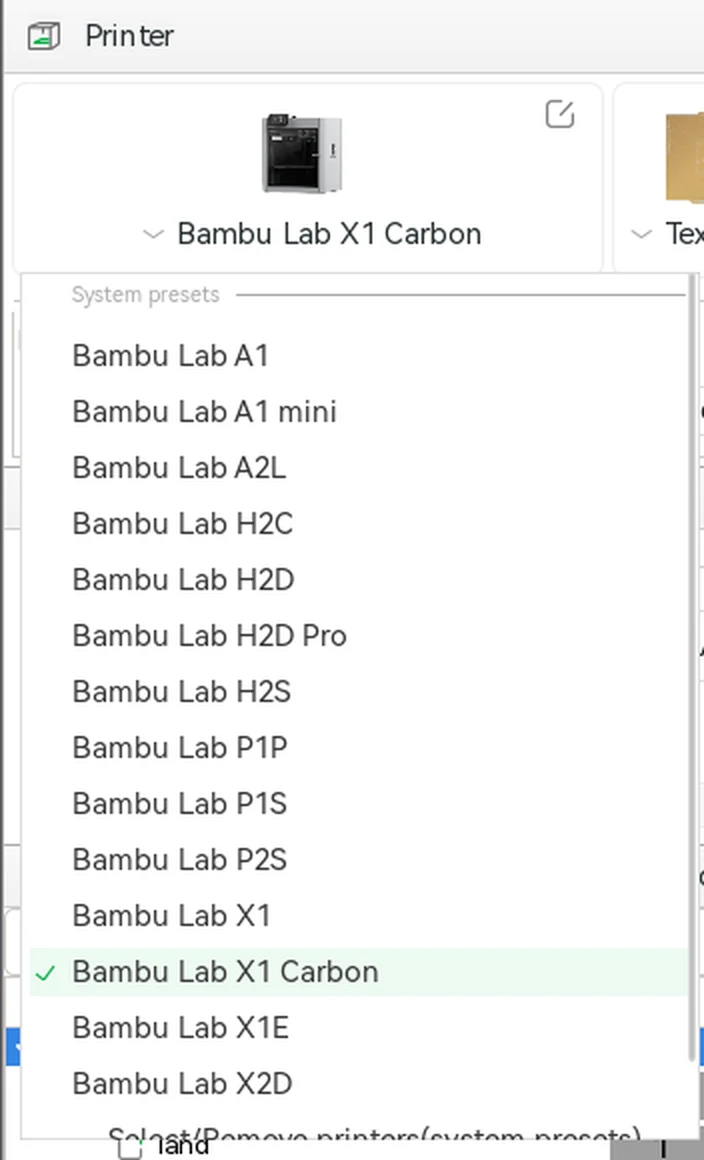
Pick your printer
The file opens on an X1 Carbon. If you print on another machine, click the printer name in the Printer box and choose yours: an A1, A1 mini, P1S, P2S, X1, H2D or any other Bambu Lab printer. The filaments and their colors stay as they are. Set the plate type and the nozzle the same way. For terrain, 0.2 mm layers and no supports work well; see STL vs 3MF for more slicer settings.
Slice and check the colors
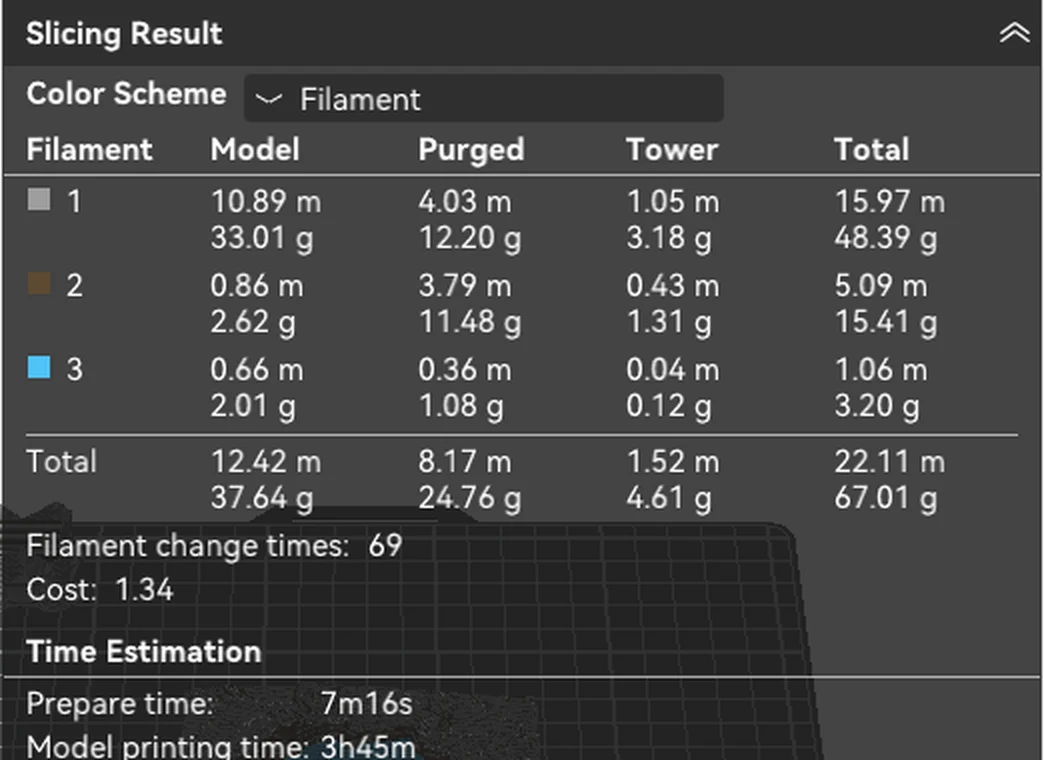
Click Slice plate. In the Preview tab, the sliced map shows in its print colors, so you can check the lake, the trail and the contour lines layer by layer with the slider on the right. The Slicing Result panel lists the filament each color uses, the filament purged on every change and the print time. Crater Lake with contour lines takes about 3 h 50 min on an X1 Carbon, with 69 filament changes.
Match the filaments to your AMS and print
Load the colors into your AMS, or AMS lite on an A1. Click Print plate, and in the send dialog match each project filament to the AMS slot that holds it; Bambu Studio suggests a match by color. To use the exact colors already loaded in your AMS instead, click Sync info in the Printer box before you slice. Print the map flat on the plate with no supports.
Frequently asked questions
Is it free to download the 3MF for Bambu Studio?
Yes. Downloading the 3MF, and Open in Bambu Studio, are free with a free account, for personal use. The free plan includes 2 print colors, such as land and water; the trail and contour lines don't count toward them. More colors and commercial use need Pro ($10 a month). See pricing.
Why does Bambu Studio open my map without colors?
The file is probably an STL, or an older 3MF saved before TrailMark3D wrote Bambu Studio projects. Download the 3MF again from your model and open that one. An STL only holds the shape, so every part lands on filament 1.
Can I print the map without an AMS?
Yes. Print it in one color: set every part to filament 1 and the map prints as plain terrain. For a two-color look on a single-color printer, right-click the layer slider in Preview and choose Add Pause at the layer where the second color should start, such as just below the summits, then swap the spool when the printer stops.
Why does the print purge so much filament?
Every color change flushes the old filament out of the nozzle, and a map changes color on many layers. Contour lines and bands add the most changes, because they run through almost every layer. Fewer contour lines, fewer bands, or a separate drop-in water piece printed on its own cut the changes and the waste. In Bambu Studio, Flush into objects' infill also reuses some of the purge.
Does the 3MF also work in OrcaSlicer?
Yes. OrcaSlicer opens it the same way, as a project with every part on its own filament in the map's colors. PrusaSlicer opens it too; there you answer Yes when it asks to load the parts as one object.
How do puzzles and multi-day trips open in Bambu Studio?
As several plates. A puzzle opens with one named plate per piece plus one for the trail, and a multi-day trip with one plate per day ("Day 1", "Day 2" and so on). Slice and print the plates one at a time, or all at once. See 3D printed map puzzle.