Strava flyover alternative: make a 3D flyover video of your GPX route
Turn a GPX route into a 13-second 3D flyover video for Instagram Reels, TikTok and Shorts. A drone follows your trail across the real terrain, with your stats. MP4, no watermark.
In short
Upload your GPX to TrailMark3D, generate the 3D model, then click Create a Reel in the 3D viewer. Choose whether to show your distance, climb and high point and an end card, and click Create video. Your browser renders a 13-second 1080 × 1920 MP4 of a drone flying along your trail, with no watermark. The video comes with Pro, Pro Plus and the 3-day feature trial of a new free account; the 3D model itself is free.
A flyover video shows your route the way you remember it: from the air, climbing over the real mountains. Strava and Relive make that kind of video inside their own apps. TrailMark3D makes one from any GPX file, of the same 3D terrain model you can print, and hands you the video file to post wherever you like. This guide takes a GPX from upload to a finished 13-second flyover for Instagram Reels, TikTok and YouTube Shorts, and explains which plans include it.
Open the 3D viewer on the sample trail
Upload your GPX and generate the 3D model
Export the activity from Strava, Garmin Connect, Komoot or any other app as a GPX file, open the TrailMark3D home page and click Upload GPX. Frame the area on the map, then click Generate 3D Model. The video is made from this model, so the size, the shape and the vertical exaggeration you pick here are what the drone flies over.
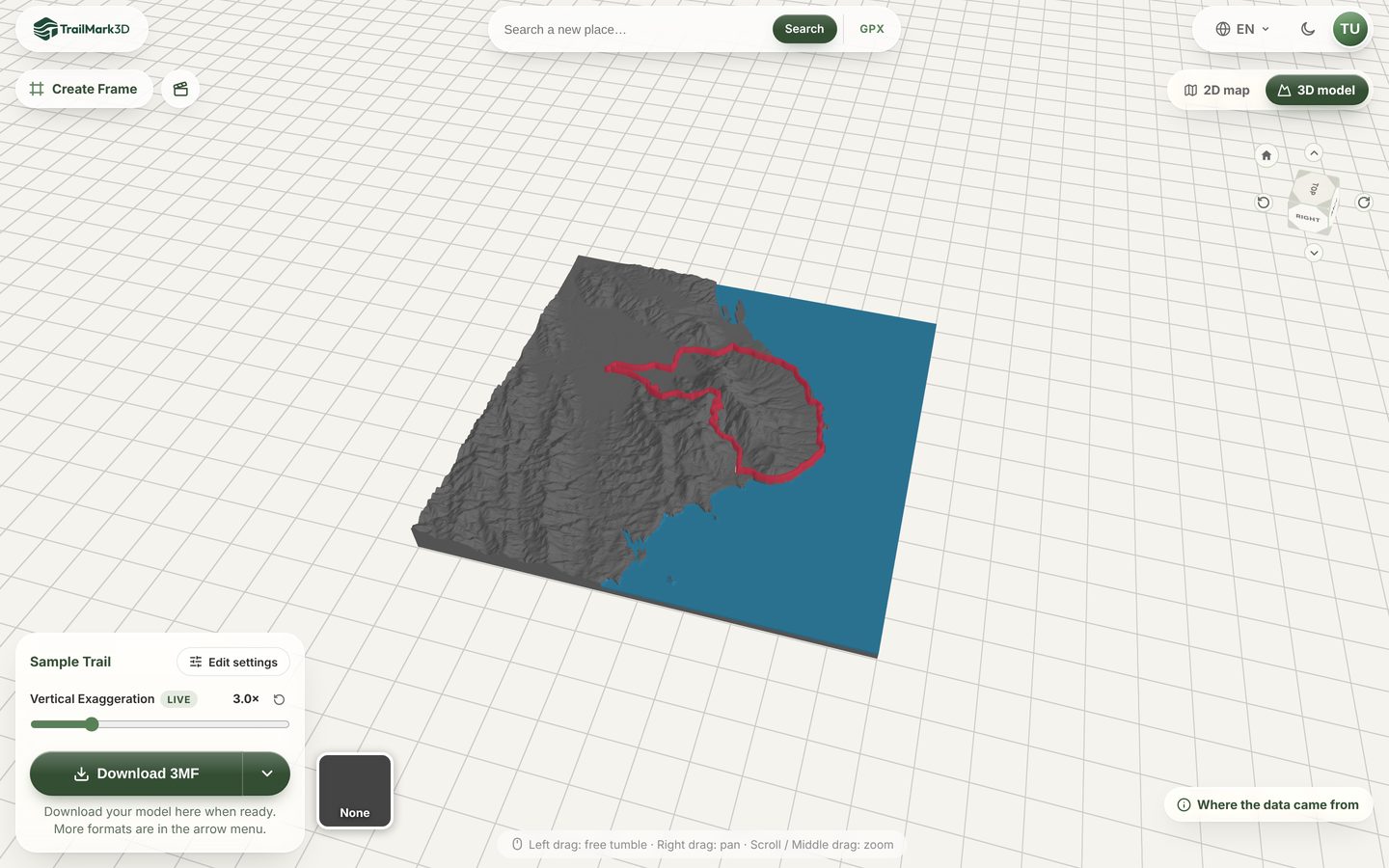
Get the model the way you want it filmed
The video films the model exactly as the viewer shows it, so set it up first. The Vertical Exaggeration slider next to the model makes the mountains taller or flatter without generating again; 2× to 3× reads well on a phone screen. The trail color, the water and the landcover colors all carry over. The map under the model is left out: the video puts the model on a clean studio backdrop with soft shadows.
Click Create a Reel
The Create a Reel button is the clapperboard button next to Create Frame, at the top left of the 3D view. The same video is also in the download menu: open the arrow next to Download 3MF and choose Flyover video for Reels under Share. If your plan doesn't include the video, the button shows a PRO badge and opens the upgrade options instead.
The button appears for a single-tile model in a browser that can record video, which current versions of Chrome, Edge, Safari and Firefox can. It is hidden while the model is cut as a puzzle or shown as an assembled multi-day trip.
Choose the stats and the end card
The dialog shows a frame from the video and two options. Show stats adds a distance counter while the drone flies, then a row with your trail's distance, climb and high point. You can edit those values, remove them or add your own, up to three, for example a finish time. Show end card ends the video on the TrailMark3D logo; turn it off to end on your model.
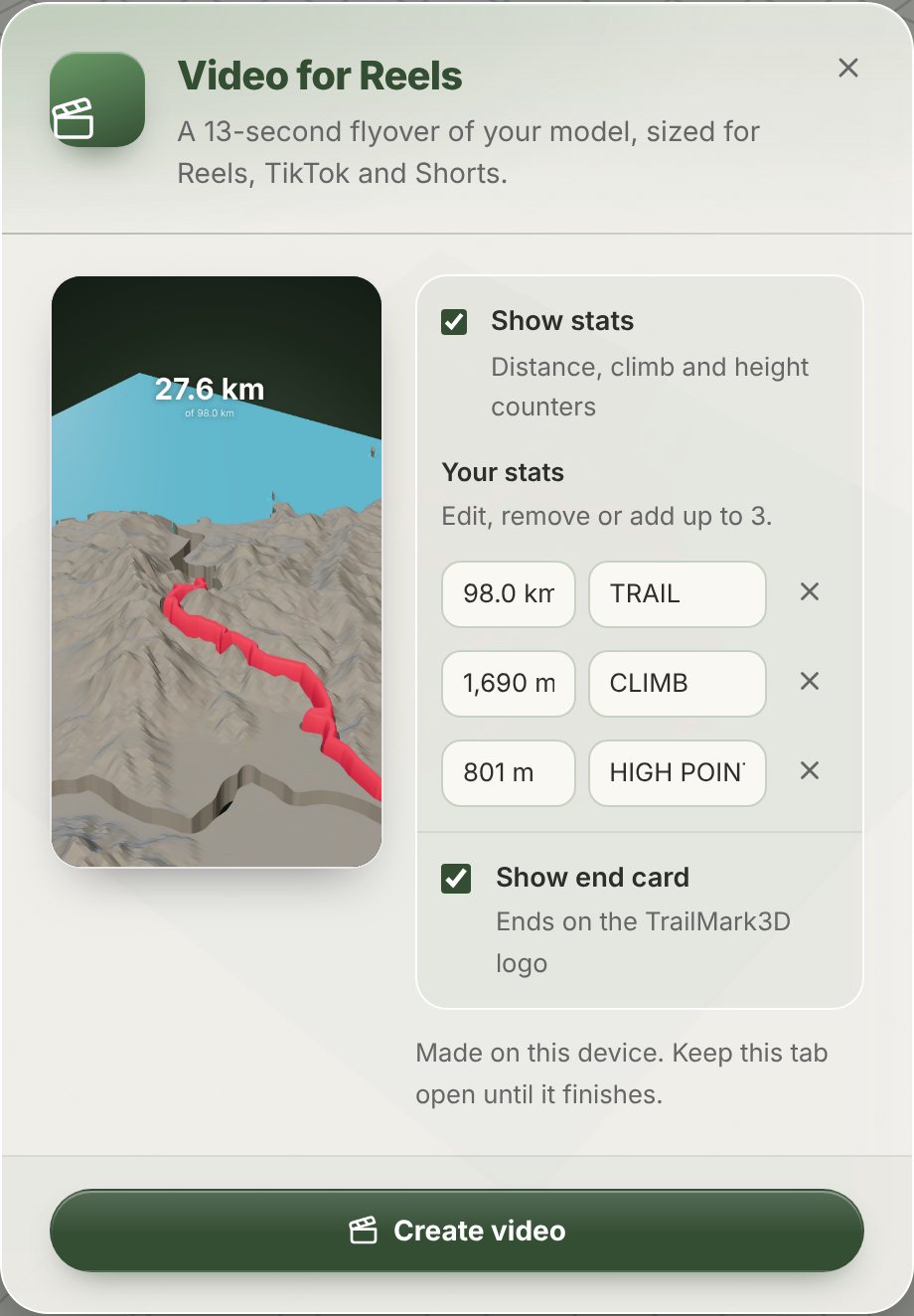
Create and download the video
Click Create video. Your browser renders the clip frame by frame on your own device, which takes from a few seconds to a minute or two, so keep the tab open until it finishes. Then click Download video. You get a 13-second, 1080 × 1920 MP4 at 30 frames per second, with no watermark, ready to post as a Reel, a TikTok or a Short. A browser that can't encode MP4 saves WebM instead and the dialog tells you so; Chrome and Safari save MP4.
What the flyover shows
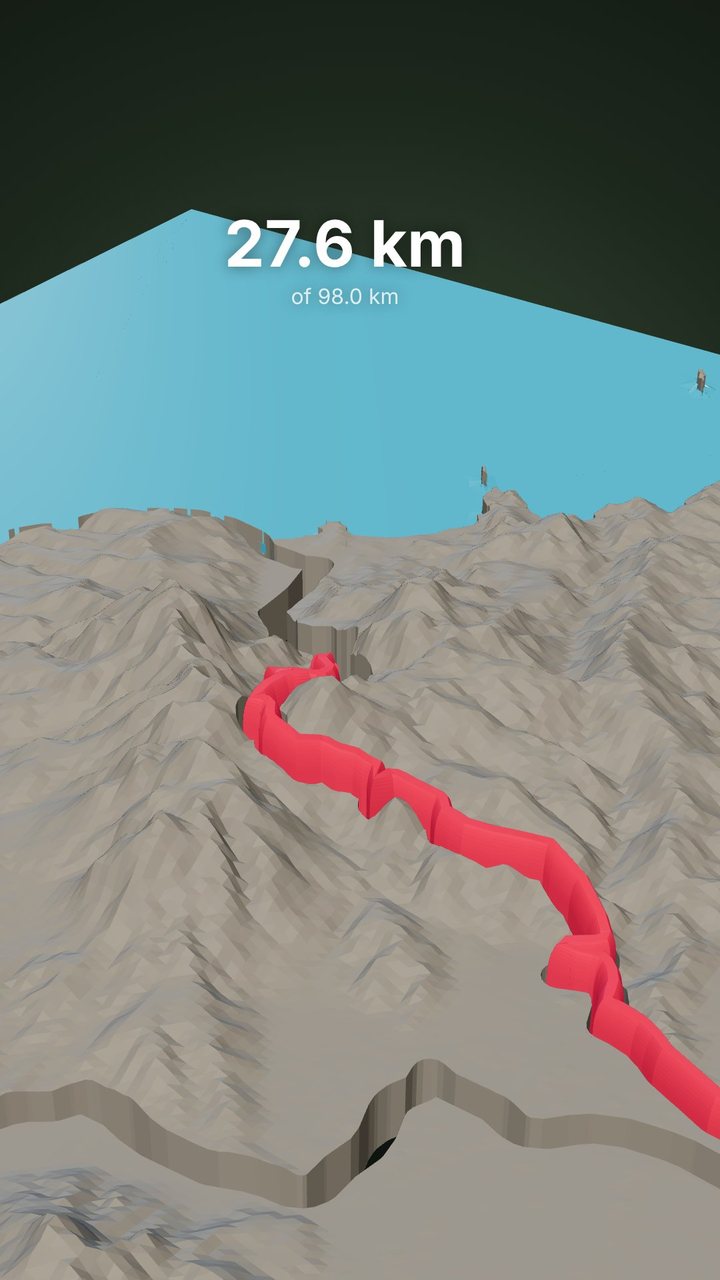
With a trail, the drone starts low behind the trailhead and chases the route as it draws across the terrain, with a distance counter running. It then climbs out to circle the whole model while your stats come up, and ends on the end card. Without a trail, for a place you searched or a city model, the drone tours landmarks it finds in the model itself: the summit with its height, downtown, the waterfront or the tallest building.
Frequently asked questions
Is the flyover video free?
The video comes with Pro ($10 a month) and Pro Plus, and with the 3-day feature trial every new free account gets. On the Free plan after the trial, the button shows a PRO badge. The 3D model itself, the 3D viewer and the STL and 3MF downloads are free, so you can build and check the model before you decide. See pricing.
Is this a free Strava flyover alternative?
It does a similar job in a different way. Strava's flyover plays inside Strava for your Strava activities. TrailMark3D works from any GPX file, from Strava, Garmin, Komoot or a route you planned, and gives you an MP4 file of a 3D terrain model you can also 3D print. The model is free; the video needs Pro or the 3-day free trial.
Can I make a Relive-style video of my hike?
Yes. Export the hike as a GPX, generate the model and click Create a Reel. The video follows your trail across real terrain with your distance, climb and high point. It doesn't add photos or music; add those in Instagram, TikTok or your video editor.
Does the video have a watermark?
No. The video has no watermark. The end card with the TrailMark3D logo is optional, and you can switch it off before you create the video.
What format and size is the video?
An MP4 (H.264), 1080 × 1920 pixels, vertical 9:16, 30 frames per second, 13 seconds long. That is the size Instagram Reels, TikTok and YouTube Shorts expect. A browser that can't encode MP4 saves WebM, and the dialog says so when it does.
Why don't I see the Create a Reel button?
The button needs a generated single-tile model and a browser that can encode video. It is hidden while the puzzle is switched on and in the assembled view of a multi-day trip. Generate the model, switch the puzzle off, or try Chrome or Safari on a computer.
Is my route uploaded to make the video?
No. The video is rendered in your browser from the model already on your screen. Nothing is uploaded or stored to make it.