GPX to 3D print: turn a Strava or Garmin route into a 3D printed map (STL or 3MF)
Convert a GPX file from Strava, Garmin or Komoot into a 3D printable terrain map with your trail on it. Upload, pick the shape, generate and download STL or 3MF, free.
In short
Export your activity as a GPX file, upload it to TrailMark3D, frame the area and pick a tile shape on the map, then click Generate 3D Model. In under a minute you get a 3D terrain model with your route on top, ready to download as a multi-color 3MF or as STL files for any slicer. The Free plan covers all of this.
A GPX file is the track your watch or phone recorded: a list of points with latitude, longitude and elevation. TrailMark3D reads that track, fetches the real terrain around it, and builds a 3D model of the landscape with your route running across it. This guide takes one GPX file from upload to a finished, printable model, with a screenshot of every step and of the result. It works the same for a Strava run, a Garmin hike, a Komoot ride or a route you planned yourself.
Open the workspace on the sample trail
Get a GPX file of your route
Every major sports app can export an activity as GPX. On Strava, open the activity on strava.com and choose Export GPX from the … menu. On Garmin Connect, open the activity and choose Export to GPX from the gear menu. Komoot, Wikiloc and 健行筆記 have a download button on the tour page.
Upload the GPX to TrailMark3D
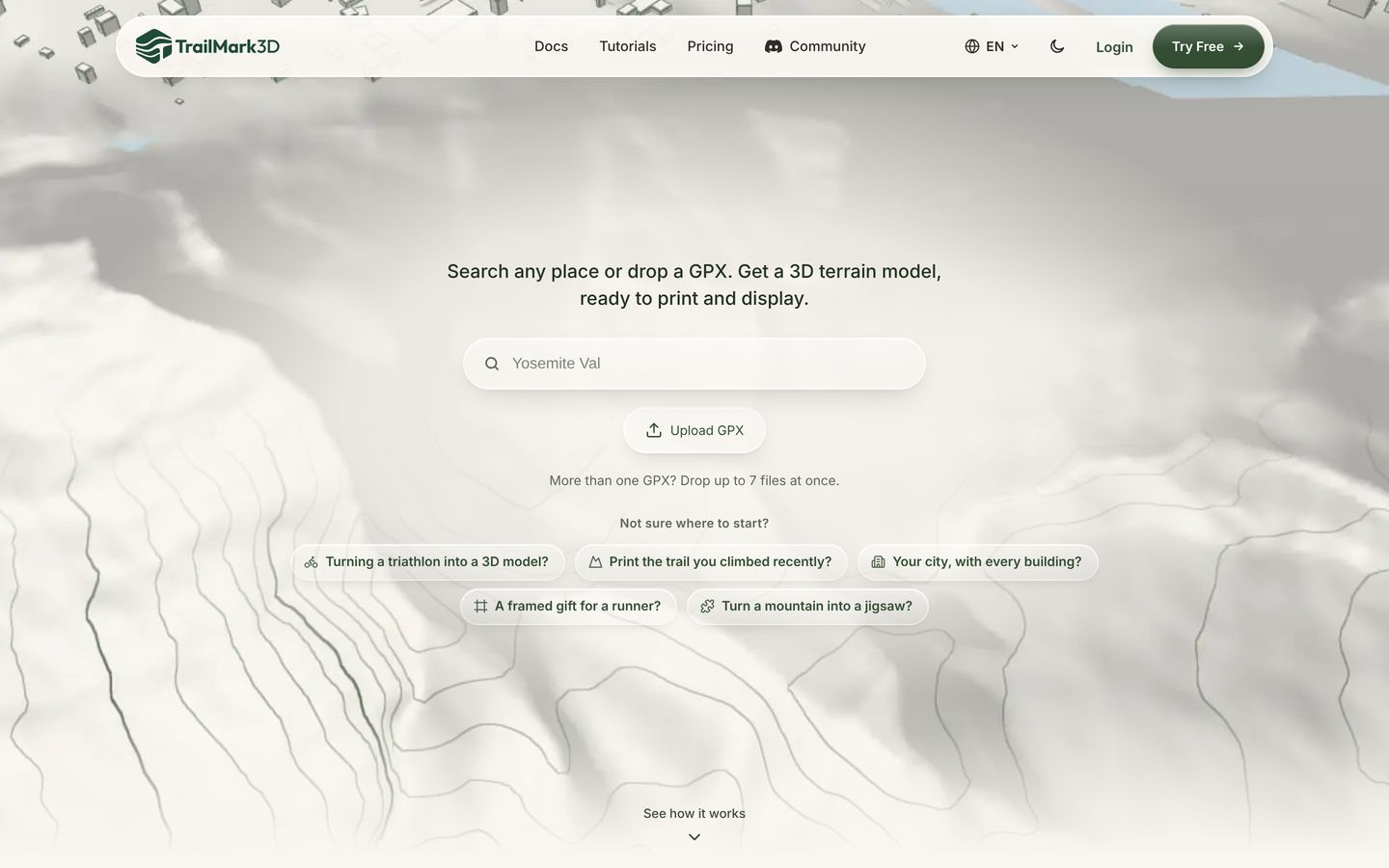
Open the TrailMark3D home page and click Upload GPX, or drag the file onto the page. With Pro, you can drop up to 7 GPX files at once for a multi-day trip (Pro Plus allows trips of up to 60 days). The workspace opens as soon as the file is read: the settings panel on the left, and your route drawn on the map on the right.

Frame the area and pick the tile shape
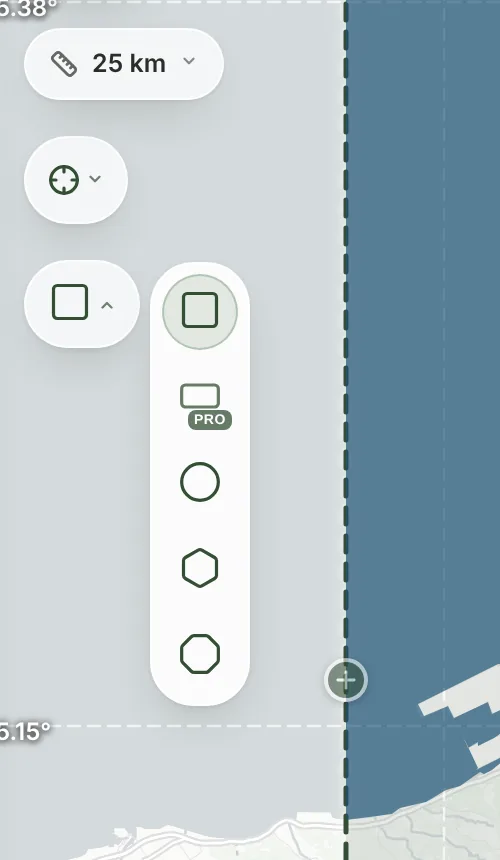
The dashed outline on the map is the tile: everything inside it becomes your model. Drag the center handle to move it, drag a side handle to make it bigger or smaller, and drag the round handle at the top to rotate it. The crosshair button centers the tile on the start, the finish, the highest point or the middle of the route.
The tile shape button below it opens the shapes: square, circle, hexagon and octagon on the Free plan, plus a free-form rectangle on Pro.
Set the terrain and the trail
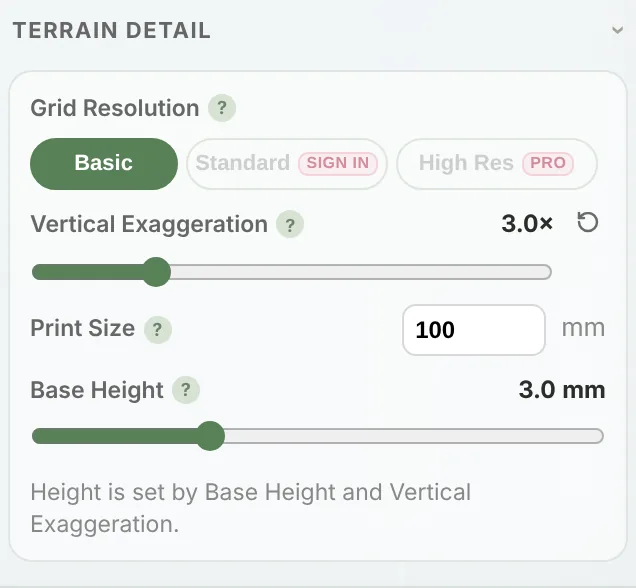
Two sections of the panel do most of the work. Terrain Detail sets the print size (100 mm by default), the base height and the vertical exaggeration, which stretches the mountains upward so the relief reads well at a small scale. 3.0× is a good start for hills; lower it for high mountains. Trail Settings decide whether the route is raised, carved in or left out, and how thick it is.
Open Terrain Detail · Open Trail Settings
Generate the 3D model
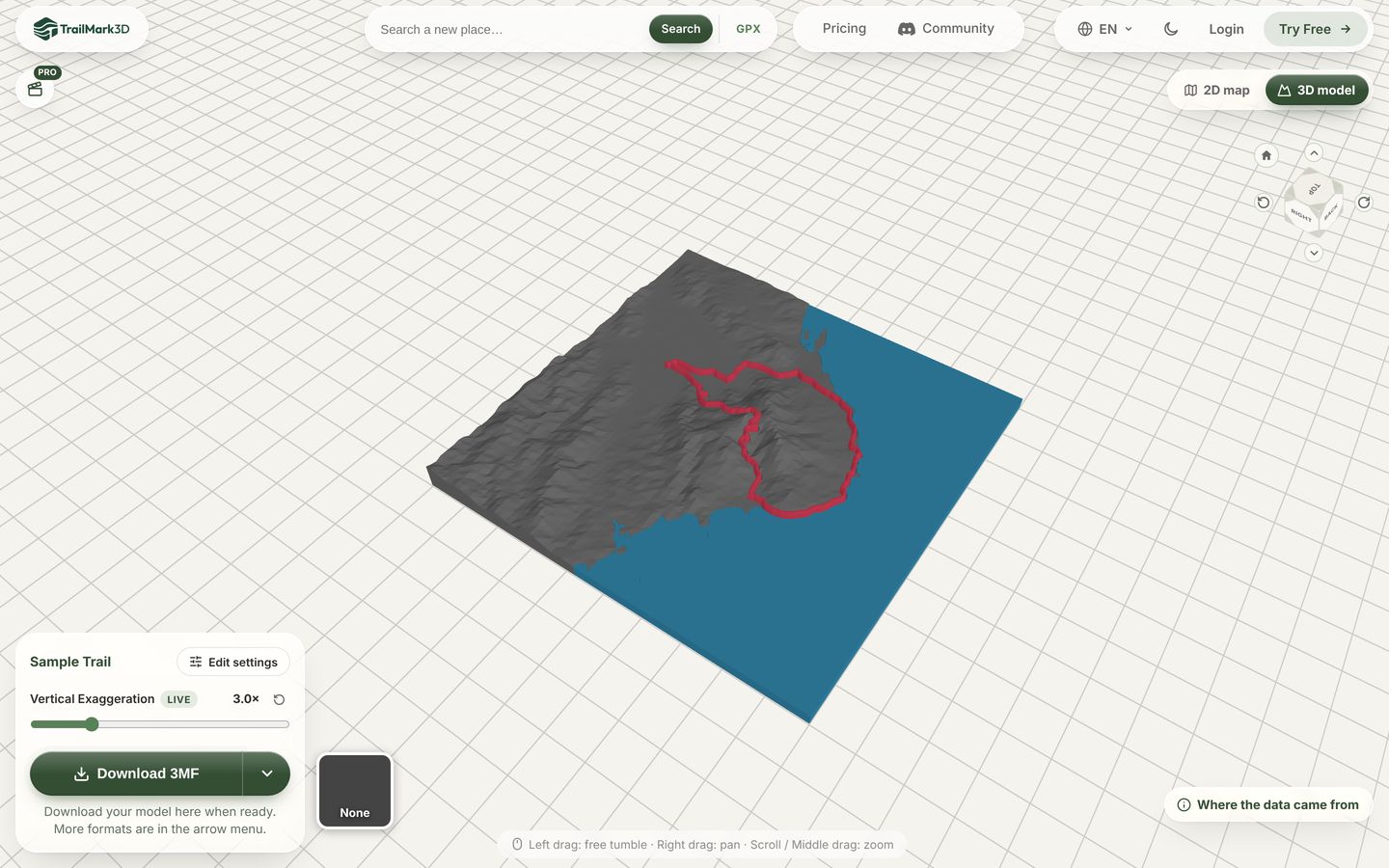
Click Generate 3D Model at the bottom of the panel. TrailMark3D fetches the elevation data, the coastline and the water, builds the mesh and switches to the 3D view, usually in under a minute. Orbit with the left mouse button, pan with the right one and zoom with the wheel. The Vertical Exaggeration slider next to the model updates it live, without generating again.
Download the 3MF or STL files
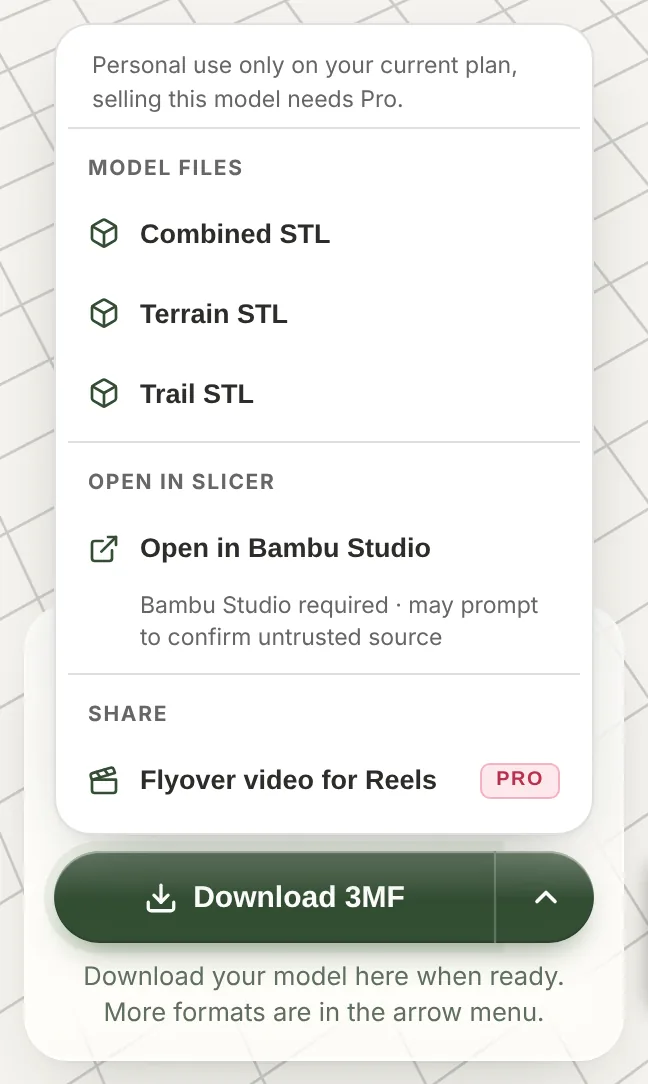
The main button downloads a 3MF: one file with the terrain, the water and the trail as separate colored parts, which Bambu Studio, OrcaSlicer and PrusaSlicer open in color. The arrow next to it lists the STL files (Combined, Terrain and Trail) and Open in Bambu Studio. Downloading needs a free account; the button asks you to sign up the first time.
Slice and print
Open the file in your slicer, choose your filaments and print it flat on the bed with no supports. A 100 mm tile at 0.2 mm layers takes a few hours on most printers. Which file to pick, and the slicer settings that work for terrain, are in STL vs 3MF.
Frequently asked questions
Is TrailMark3D free?
Yes. The Free plan makes 5 models a day with standard terrain detail, areas up to 200 km across, up to 2 print colors (the trail does not count), all four basic shapes, and STL and 3MF downloads for personal use. You need a free account to download. Pro ($10 a month) adds unlimited models, high terrain detail, the rectangle shape, multi-day trips and commercial use; Pro Plus ($15 a month) adds more saved models, longer trips and extra tiles. See pricing.
Can I convert GPX to 3MF, or only to STL?
Both. The main download is a 3MF with each part in its own color, and the arrow menu has the same model as STL files. They come from the same model, so you can download both.
Does it work with Strava, Garmin and Komoot?
Yes, through a GPX export. TrailMark3D does not log in to those services; you export the GPX from the app and upload the file. This guide shows where the export is in each one.
What size will the print be?
100 mm across by default. Change Print Size in Terrain Detail to any size your printer fits, then generate again. The Pro plan's high terrain detail matches the mesh to that size and to your nozzle.
Do I need a multi-color printer?
No. The 3MF prints in color on an AMS, MMU or tool changer, and on a single-color printer you can swap filament at a layer, print the trail as a separate piece (see Trail settings), or print the Combined STL in one color.
How is TrailMark3D different from TrailPrint3D or other GPX to STL converters?
TrailMark3D runs in the browser with nothing to install, and builds water, coastlines and the trail as separate colored parts in one 3MF. It also has a 3D preview before you download, and the same settings work for a place search with no GPX at all.