Round, hexagon or square 3D printed map: set the shape, size and tiles
Choose the shape of a 3D printed map in TrailMark3D, from square, circle, hexagon and octagon to a free rectangle, then size it, move it, rotate it and set the print size. For a map bigger than your print bed, add extension tiles that print at the same scale and fit edge to edge.
In short
In the TrailMark3D workspace, click the shape button on the 2D map and pick Square, Circle, Hexagon or Octagon (free) or Rectangle (Pro). Drag the side handle or type a width under the tile to set the area, the center handle to move it, and the orange handle to rotate it; the center picker jumps to the trail's start, finish or highest point. Set the Print Size under Terrain Detail and click Generate 3D Model. For a map bigger than your print bed, click the plus buttons around the tile to add extension tiles, then Prepare tiles; extension tiles are Pro Plus, and Pro previews them.
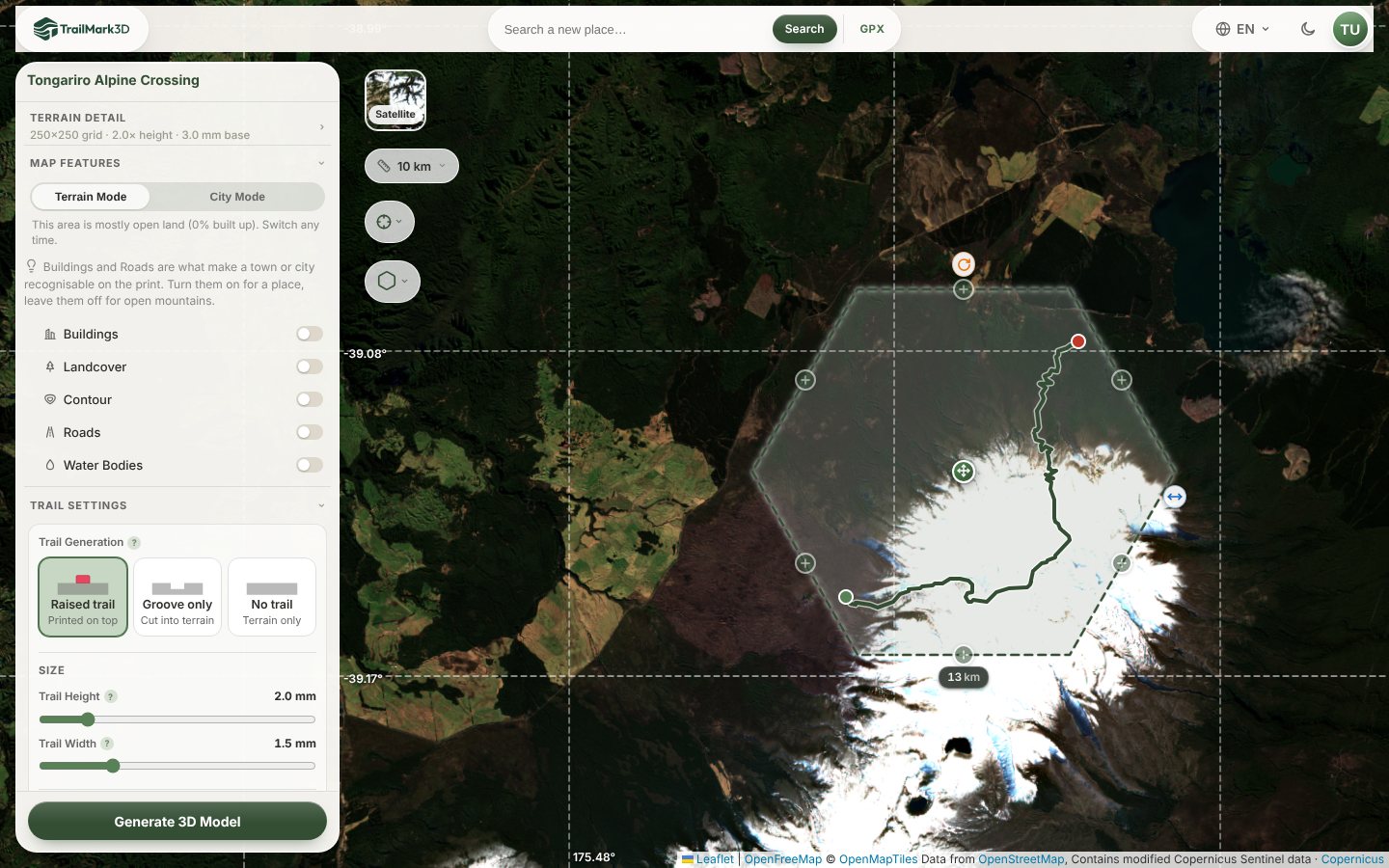
The outline of a 3D printed map changes how it looks on a shelf as much as the terrain inside it. A circle feels like a medallion, a hexagon tiles with others on a wall, and a square fits a frame. TrailMark3D cuts the terrain to the shape you pick, at the size and angle you set on the map, and for a route too big for one print it adds matching tiles around it. This guide uses the Tongariro Alpine Crossing in New Zealand, a 19.4 km day hike across a volcanic plateau between Mount Tongariro and Mount Ngauruhoe, as a hexagon tile.
Load your trail or place
Upload the GPX of your hike on the TrailMark3D home page, or search a place by name. The workspace opens with your route on the map inside a dashed tile: that tile is the outline of the 3D model. If you don't have the GPX yet, Export your route from Strava, Garmin or Komoot shows where to find it.
Pick the shape
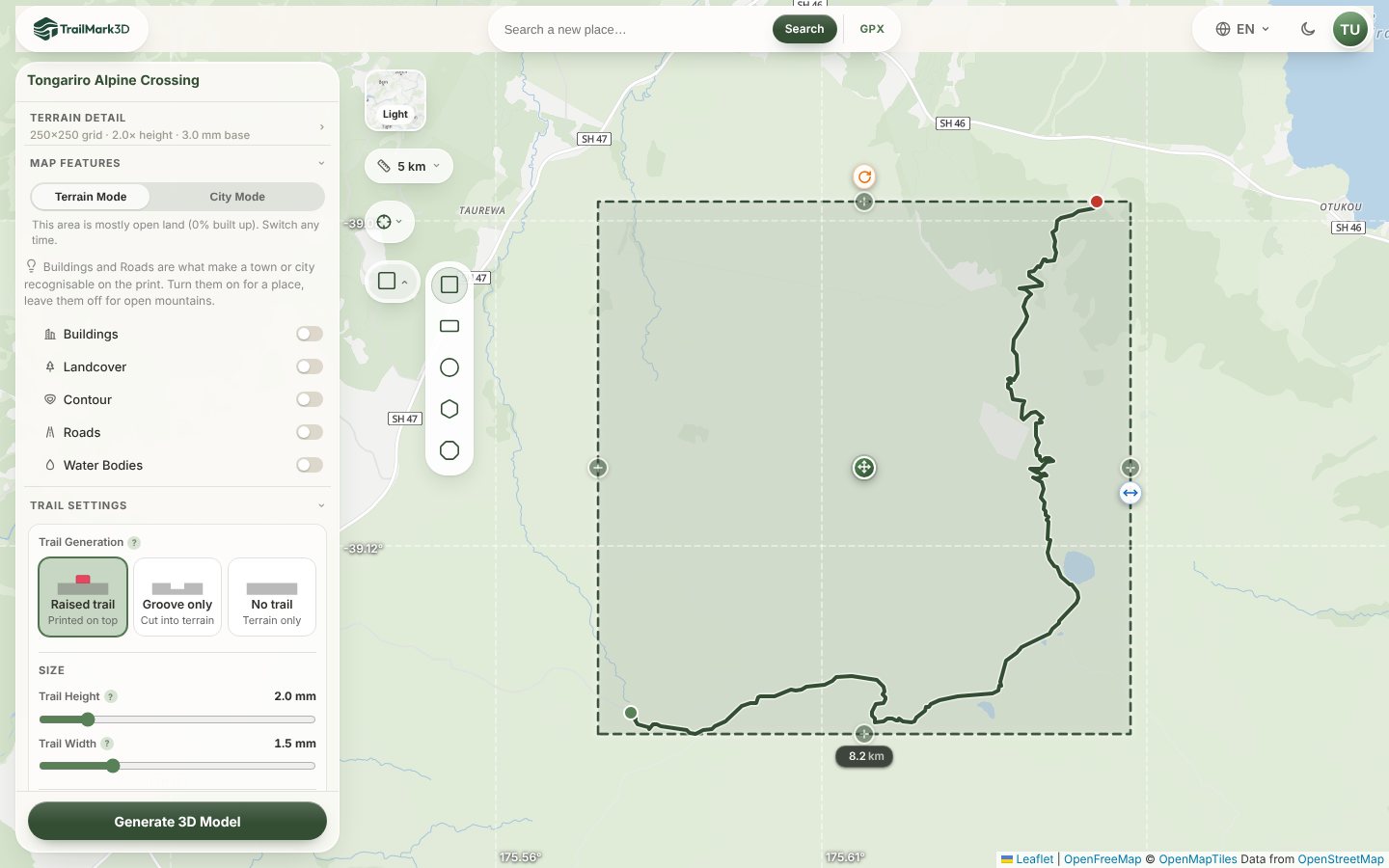
Click the shape button on the left side of the 2D map, under the center picker. It opens the shapes: Square, Rectangle (Pro), Circle, Hexagon and Octagon. The tile on the map changes at once, so you can try each one over your route. A rectangle has its own width and height, typed in the label under it, for a long trail or a panorama.
Size, move and rotate the tile
Drag the side handle to make the tile bigger or smaller, or click the width under the tile and type it: here 13 km, enough for the whole crossing and the craters around it. Drag the center handle to move the tile, and the orange handle above it to rotate it, for example to line a ridge up with an edge. The center picker above the shape button jumps to the trail's start, its finish, its highest point or its middle. The layer button at the top switches the map between Light, Satellite and Dark; satellite shows the snow, lava flows and lakes you will see in the model.
Set the print size
Open Terrain Detail and type the Print Size: the length of the longest side of the print, from 20 to 250 mm (100 mm by default). Larger prints carry more detail, and on Pro the grid is set from the print size and your nozzle so the mesh matches what the printer can lay down. The area on the map and the print size together set the scale: a 13 km tile printed at 150 mm is about 1:87,000.
Generate the model
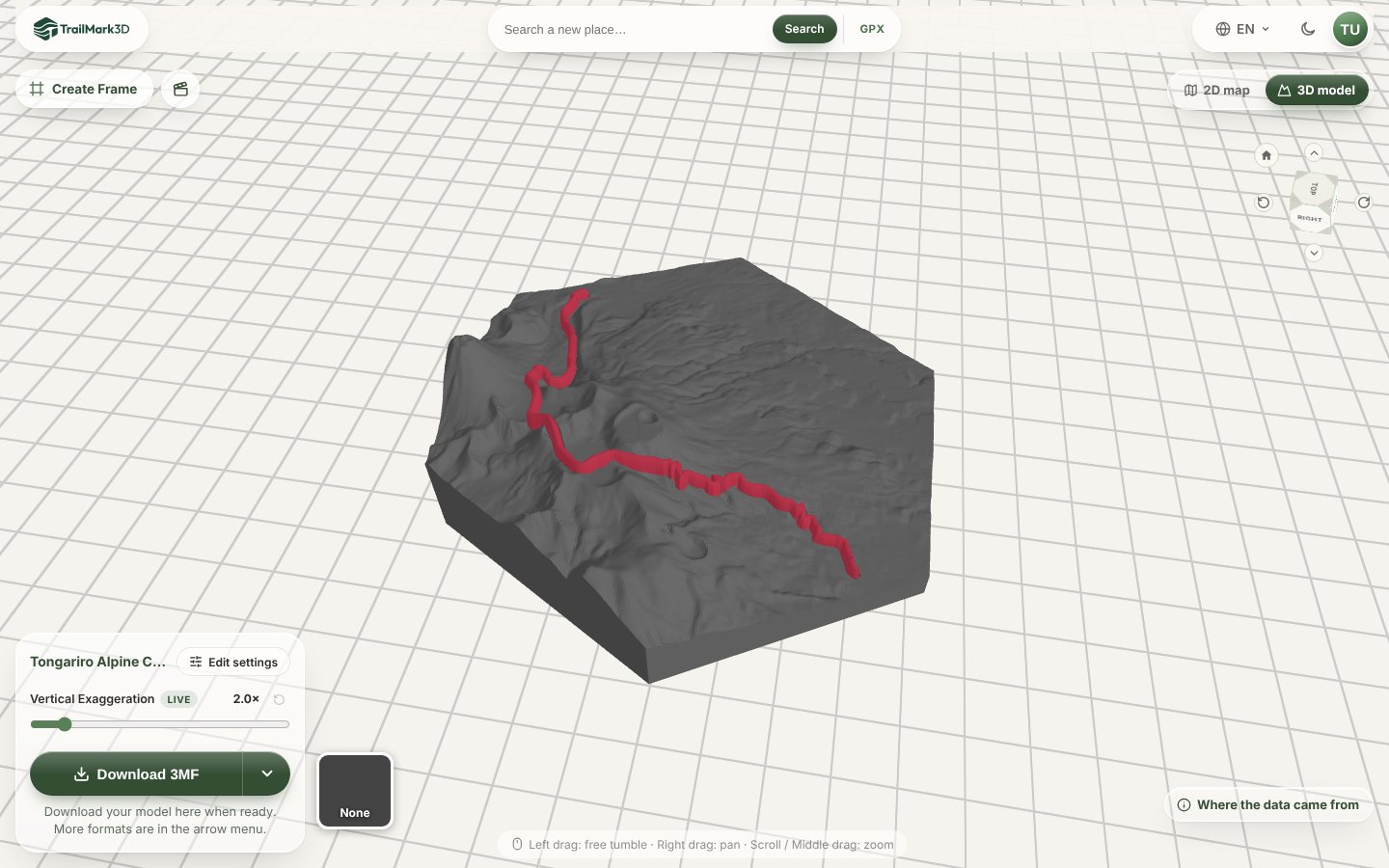
Click Generate 3D Model. The terrain is cut to your shape with straight walls and a solid base, and the trail is raised on top. Drag to turn it in the 3D viewer, and check that the shape crops the route where you want before you download.
Bigger than your print bed: add extension tiles
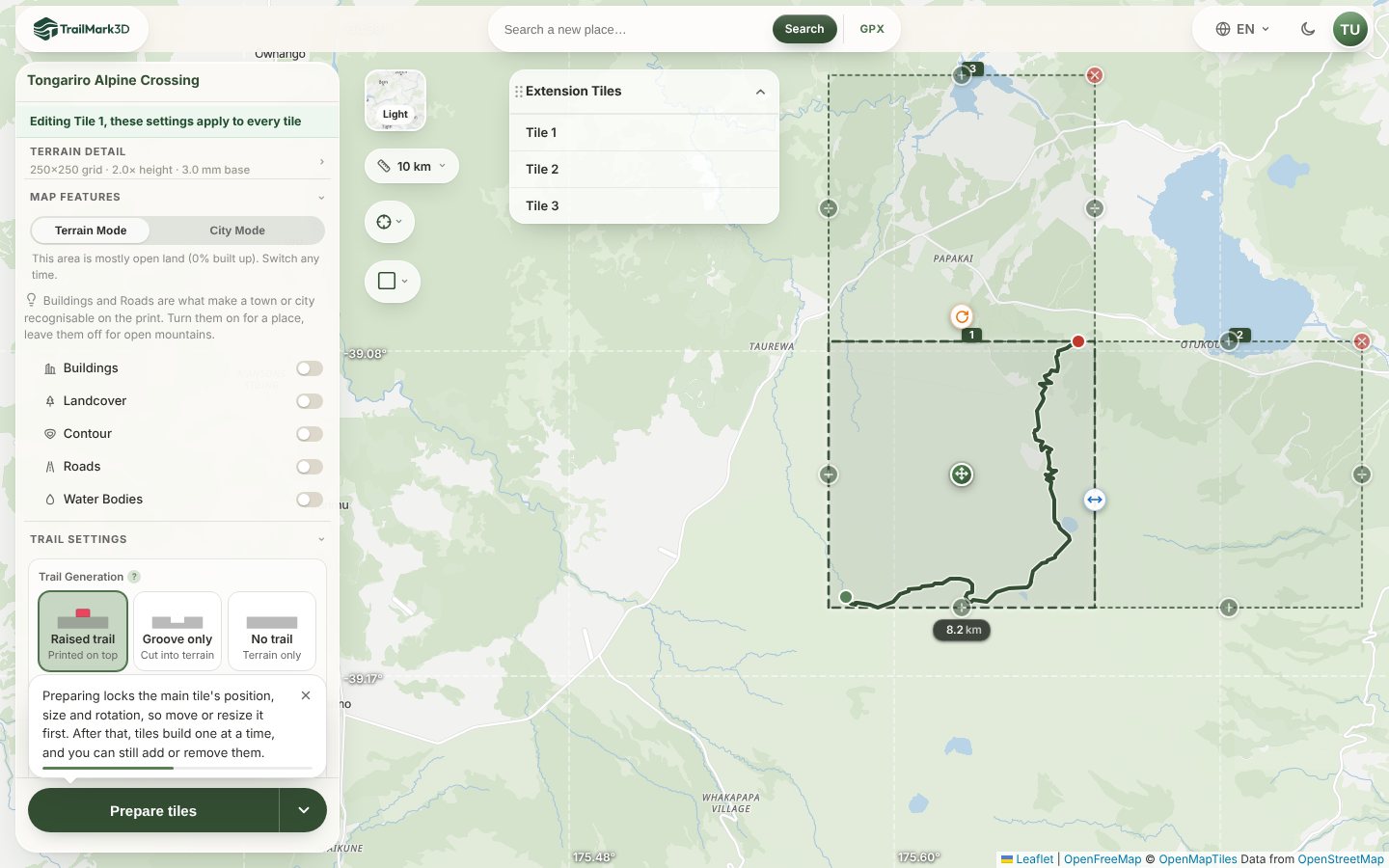
To print a larger area at the same scale, add tiles around the main one. On the 2D map, click the plus buttons on the edges of the tile (here a square): each one adds a neighboring tile of the same size, numbered on the map and listed in the Extension Tiles panel. Every tile is measured from the main tile, so they all print at the same scale and fit together edge to edge. A route wider than your plan's widest single tile is offered as tiles automatically. Click a tile's × to remove it.
Prepare, build and download the tiles
Click Prepare tiles. This locks the main tile's position, size and rotation, then each tile builds one at a time, and you can still add or remove tiles. In the 3D viewer, Assembled shows every built tile together and Single tile one at a time. The download menu lists each tile with its own 3MF and STL, and All 3MF (ZIP) downloads them together once every tile is built. If the trail crosses several tiles, Generate Full Trail builds it as one unbroken piece at the same scale, to drop into the tiles' slots.
Frequently asked questions
Is it free?
Yes. Square, circle, hexagon and octagon tiles, the move, resize and rotate handles, any print size from 20 to 250 mm, and STL and 3MF downloads are free with an account, up to 5 models a day and areas up to 200 km across. The rectangle shape is Pro ($10 a month). Extension tiles are Pro Plus ($15 a month), which builds and downloads up to 60 tiles; Pro previews up to 12 with a watermark. See pricing.
Which shape is best for a 3D printed map?
A circle or hexagon suits a single peak or a lake, since the eye goes to the middle. A square or rectangle suits a long trail, a frame, or a set of tiles. Hexagons also hang well together as a wall of several places.
What is the biggest map I can print in one piece?
As big as your print bed allows: Print Size goes up to 250 mm, and the area up to 200 km across on a free account or 500 km on Pro. For something larger, use extension tiles, or Regions for a whole country or state.
Can extension tiles be hexagons or circles?
Yes. Hexagon tiles join on all six sides like a honeycomb, and circles and octagons sit on a square grid like squares do. The rectangle shape has no extension tiles. Once the tiles are laid out, the shape and the main tile are fixed, because they decide where every other tile sits.
Can I rotate the map?
Yes. Drag the orange handle above the tile to any angle. The model is cut along the rotated tile, so the edges of the print follow it.
Do tiles line up when I print them?
Yes. Every tile is built from the same elevation data at the same scale, and its edges match its neighbors', so the terrain and the trail continue across the joins.