STL vs 3MF for a 3D printed map: which file to download, and how to slice terrain
STL or 3MF for your 3D printed trail map? What each TrailMark3D download holds, how the 3MF opens in color in Bambu Studio, OrcaSlicer and PrusaSlicer, and slicer settings for terrain.
In short
Download the 3MF when you print in more than one color. It holds the terrain, the water and the trail as separate parts, each already assigned to its own filament, and opens in color in Bambu Studio, OrcaSlicer and PrusaSlicer. Download the STL files for a single-color print or a slicer that ignores 3MF colors. Print flat with no supports, at 0.12 to 0.2 mm layers.
STL and 3MF both describe the shape of a 3D model, but only 3MF can say which part is which and what color it prints in. For a TrailMark3D map that matters: the terrain, the water and your trail are different parts, and with a 3MF they arrive in the slicer already split and colored. This guide shows what each download contains, opens the real 3MF in a slicer, and gives settings that print terrain well.
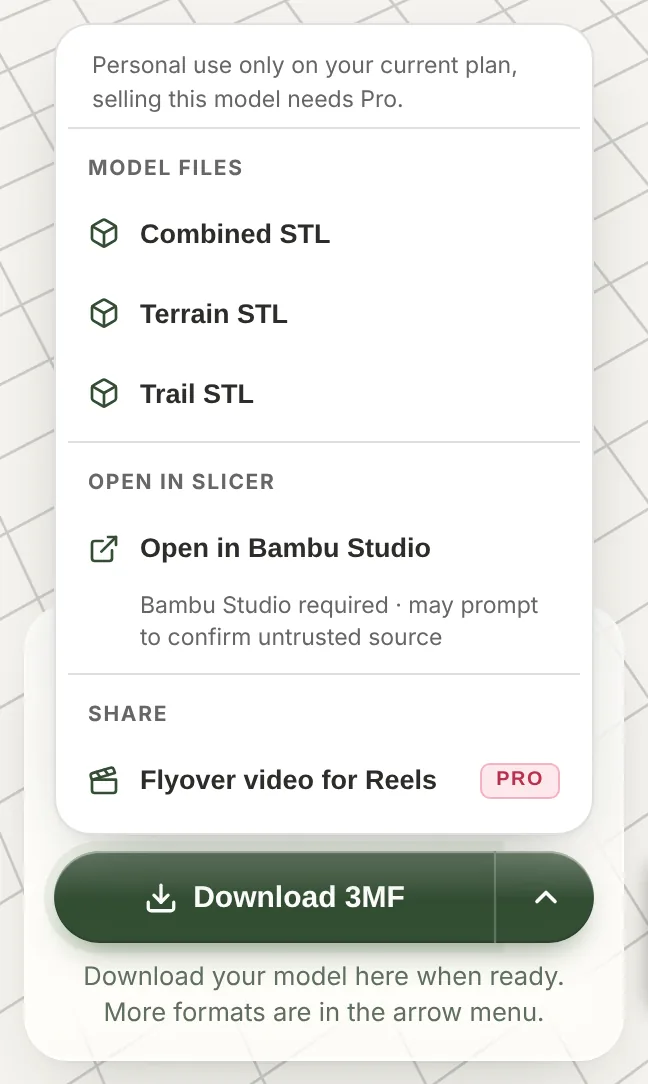
Open the download menu on the sample trail
Open the download menu
Generate a model first (see GPX to 3D print). The download button sits under the 3D view. The main button is Download 3MF; the arrow beside it lists the Model files (Combined STL, Terrain STL, Trail STL) and Open in Bambu Studio.
Know what the 3MF holds
The 3MF is one file with one part per element of the map: the land, the water, the trail, and the roads and buildings when you turned them on. Each part carries its color and is assigned to its own extruder, written in the formats Bambu Studio, OrcaSlicer, PrusaSlicer and Anycubic Slicer Next read. Landcover and contour colors are painted onto the land part.
Choose the 3MF for an AMS, an MMU, a tool changer or any multi-color setup, and whenever you want the parts separate in the slicer.
Know what the STL files hold
STL has no colors and no parts, so the model comes as separate files instead:
- Combined STL is the terrain and the trail, plus any buildings, in one mesh. Use it for a single-color print.
- Terrain STL is the landscape alone, with the slot or groove if your trail is cut in.
- Trail STL is the trail piece alone, for printing it in a second color and pressing it into its slot.
Load Terrain and Trail together as one object with two parts if you want to color them yourself in a slicer that does not read 3MF colors.
Open the 3MF in your slicer
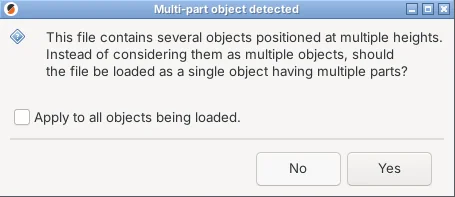
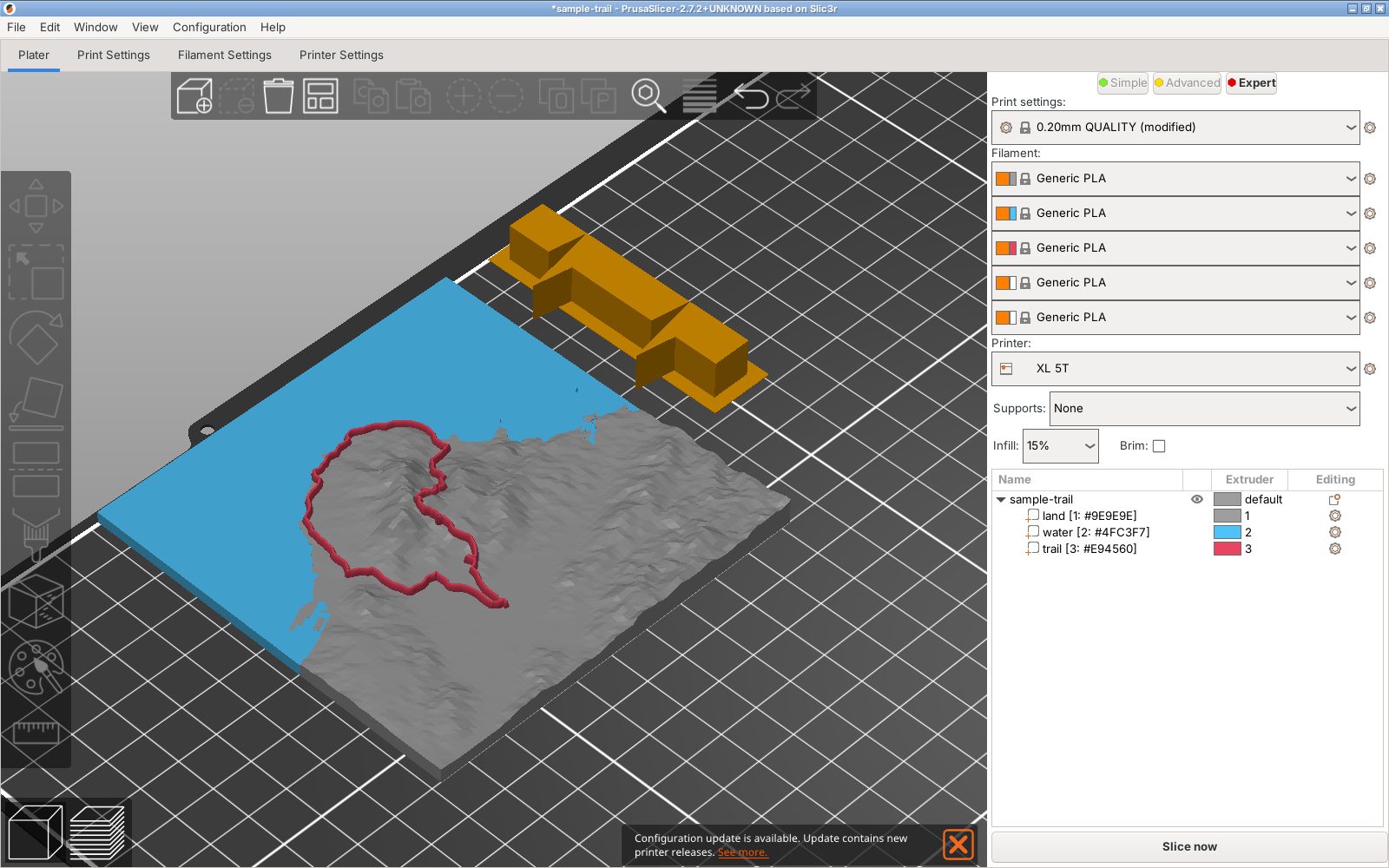
In Bambu Studio, use Open in Bambu Studio from the menu, or open the downloaded file with File › Open. In PrusaSlicer, open it with File › Import. PrusaSlicer asks whether to load the parts as a single object with multiple parts: answer Yes, which keeps the trail and the water exactly in place on the terrain.
The parts then appear in the object list with their extruders: here the land on extruder 1, the water on 2 and the trail on 3. Load the matching filaments and the colors follow.
Use slicer settings that suit terrain
Terrain is a wide, low model with gentle slopes, so it prints flat on the bed with no supports. These settings are a reliable start on a 0.4 mm nozzle:
| Setting | Value | Why |
|---|---|---|
| Layer height | 0.12 to 0.2 mm | Lower layers show smoother contours on hills and small prints |
| Supports | None | The model has no overhangs |
| Walls | 2 to 3 | Clean edges on the base |
| Infill | 10 to 15 % | The model is mostly solid surface; infill only fills the base |
| Top layers | 4 or more | Avoids gaps on the flat water and the gentle slopes |
| Brim | Off | The base is large enough to hold |
Slice and check the preview
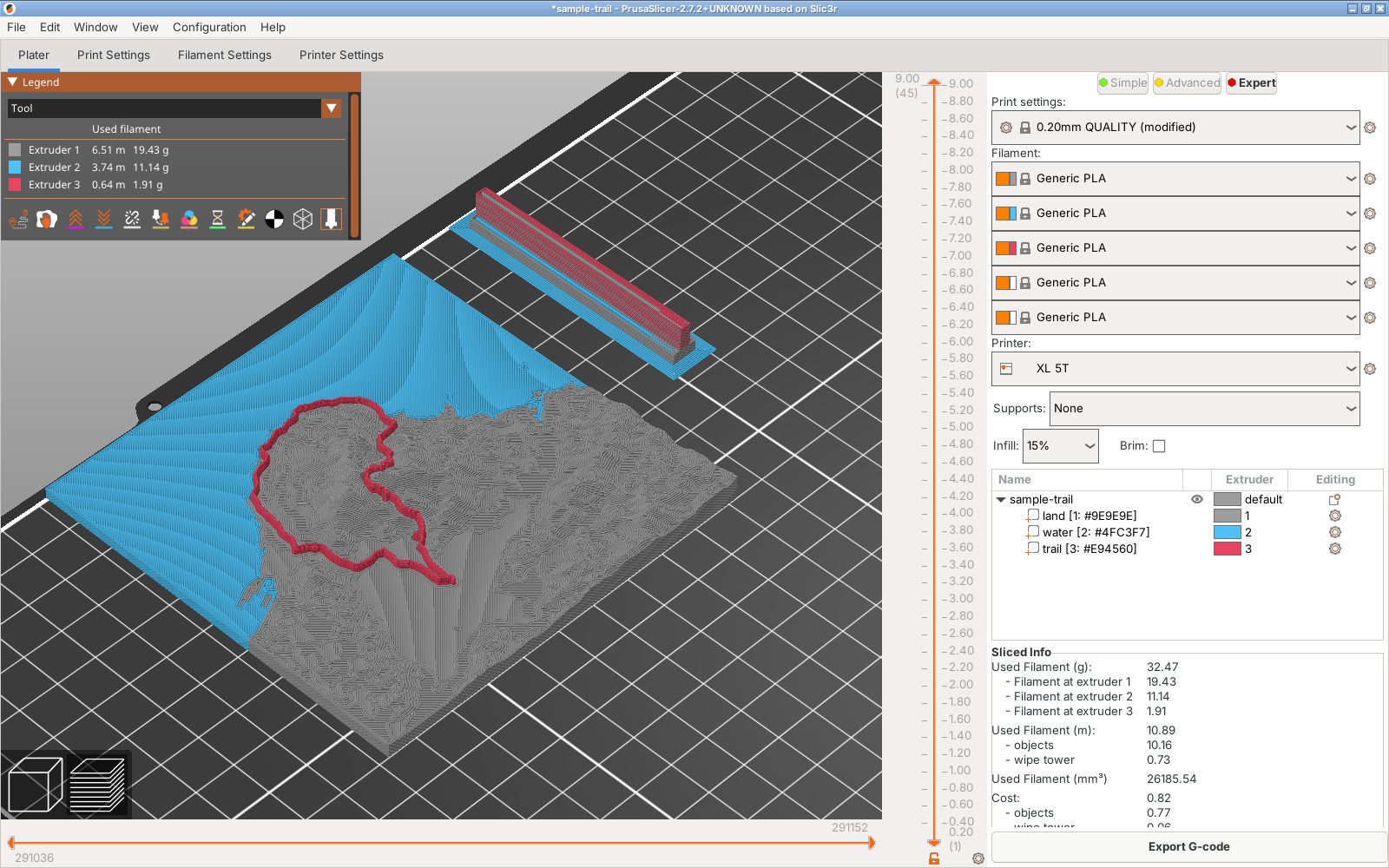
Slice, then check the preview layer by layer: the trail should sit on the terrain from its first layer, and each color should appear where you expect it. The slicer also shows how much of each filament the print uses. This 100 mm sample tile needs about 32 g in total, 19 g of it for the land.
Frequently asked questions
Is the 3MF download free?
Yes. The Free plan downloads both 3MF and STL files, with a free account, for personal use. It allows up to 2 print colors in a model, and the trail does not count, so terrain, water and trail fit. More colors, for landcover or roads, need Pro, or come free during the 3-day trial. See pricing.
Should I use STL or 3MF for Bambu Studio?
Use the 3MF. Bambu Studio opens it with every part on its own filament, and Open in Bambu Studio sends it there in one click. Use the STL files only for a single-color print.
Is the 3MF better quality than the STL?
No. Both come from the same mesh at the same resolution. The 3MF only adds the split into parts and their colors.
Can I open the 3MF in Cura?
Cura opens the 3MF as geometry, but it does not read the extruder assignments. Set each part's extruder yourself, or use the Terrain and Trail STL files.
How do I print the map in one color?
Download the Combined STL and print it in one filament. For a route that still stands out, set the trail to a groove in Trail settings, or pause at a layer to change filament.
What layer height should I use for a 3D printed topographic map?
0.2 mm is fine for a 100 mm tile of mountains. Use 0.12 to 0.16 mm for gentle hills, small prints or a lot of fine detail, because each layer is a visible contour step.