3D printed map frame: design a frame for your terrain tile with the Frame Builder
Design a 3D printable frame around your terrain map in the TrailMark3D Frame Builder. Pick a circle, square, rectangle, hexagon or octagon, set the border, add raised text, connector keys and screw holes, and export an STL or a two-color 3MF.
In short
Generate a model in TrailMark3D and click Create Frame above the 3D viewer. The Frame Builder opens with a frame already sized around your tile. Pick the shape, set the border width and height, the shelf and the edges, click a face of the frame to add raised text such as the name of the place, and add connector keys or screw holes if you want. Export an STL, or a 3MF with the frame and the text in separate colors. The Frame Builder is free with an account.
A frame turns a terrain tile into something you hang on a wall or give as a gift. Instead of hunting for a frame that fits, TrailMark3D's Frame Builder designs one around your exact model, with the name of the place on the border, and you print it next to the tile. This guide frames a 10 km model of Yosemite Valley, California, with Half Dome at its head.
Generate your model and click Create Frame
Make the model first: a trail from your GPX, a mountain, a city or a lake (see GPX to 3D print or 3D map of any place). When it is built, click Create Frame at the top left of the 3D viewer. The Frame Builder opens with your model inside a frame that is already sized to it, with a 0.5 mm margin so the tile drops in. You can also open the Frame Builder from the menu and import any STL with Import reference.
Pick the frame shape
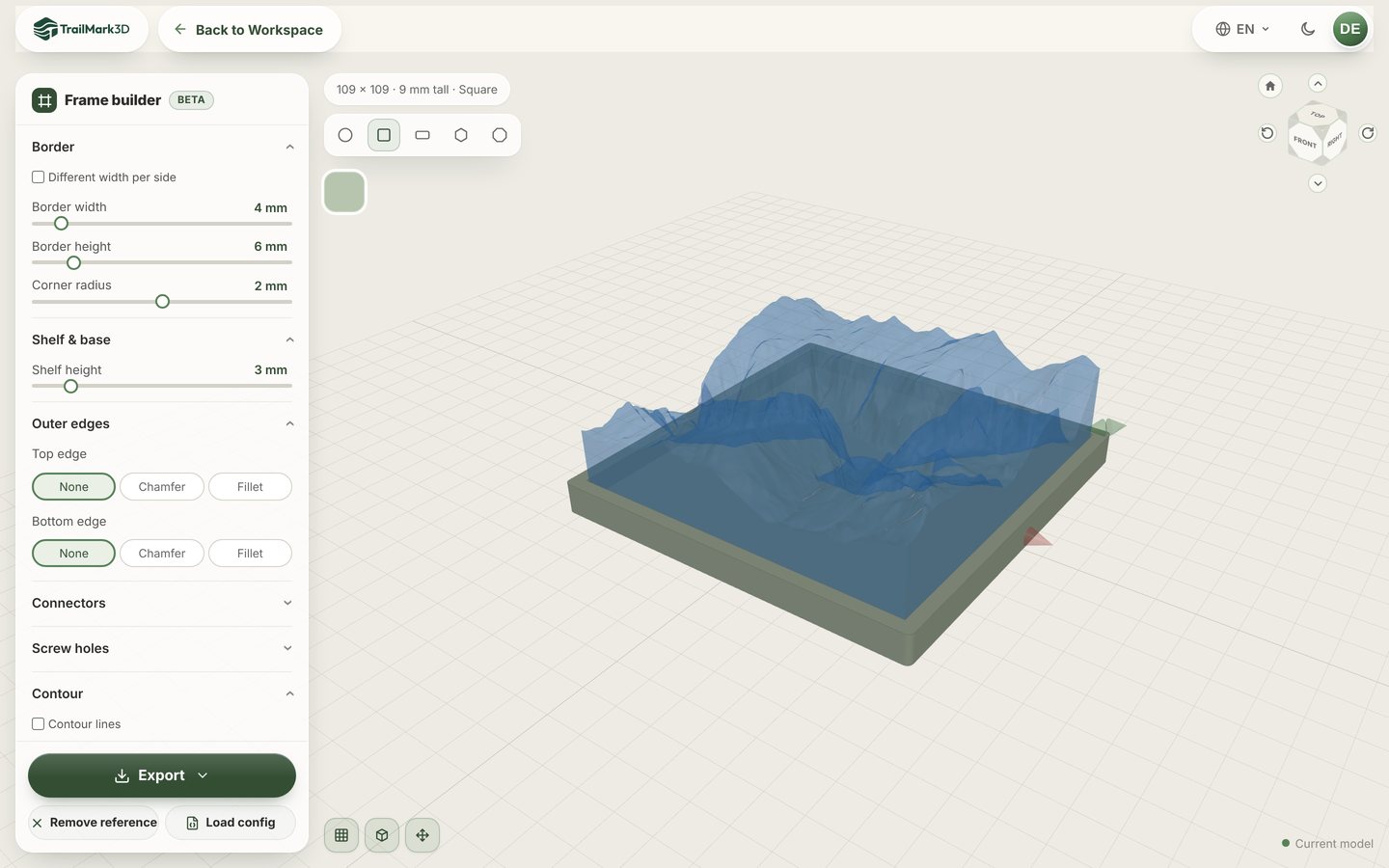
Above the 3D view, pick the shape: Circle, Square, Rectangle, Hexagon or Octagon. A square tile can sit in a hexagon or an octagon as well as in a square frame, and a round tile suits a circle. The bar above shows the outside size and height of the frame, here 109 × 109 mm for a 100 mm tile. Click the color swatch to pick the frame's filament.
Set the border, shelf and edges
Under Border, set the Border width (how far the frame reaches around the tile), the Border height above the tile, and the Corner radius. Tick Different width per side for a wider bottom edge with room for a name. Shelf height is the floor the tile rests on. Under Outer edges, round the top or bottom edge with a Chamfer or a Fillet for a finished look.
Add raised text
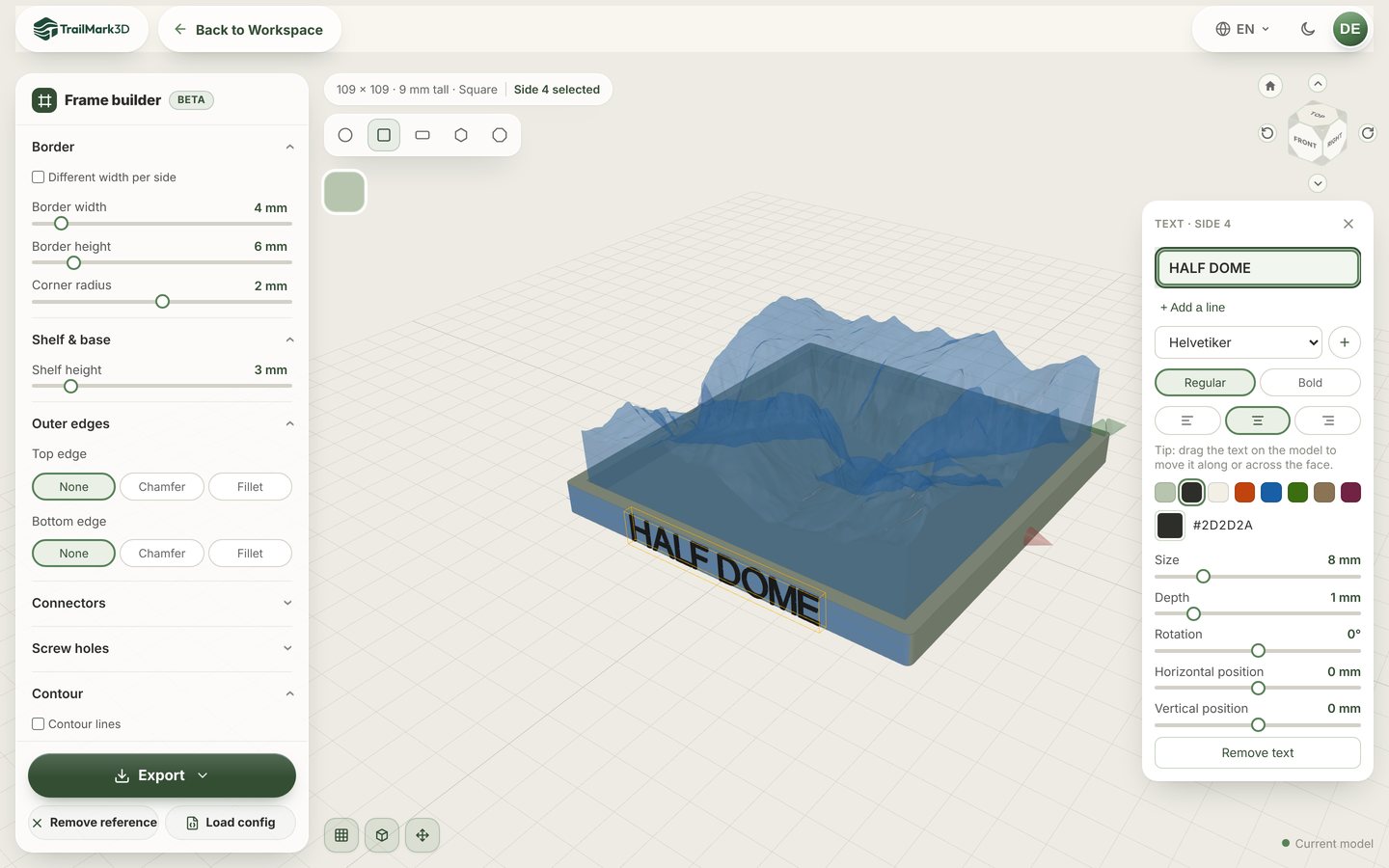
Click a face of the frame, such as the front side or the top rim, and choose Add text…. Type the name of the place, a date or a race time. Pick a font, Regular or Bold, the alignment, and a text color from the presets. Size, Depth, Rotation and the two position sliders place it exactly, and you can drag the text along the face. + Add a line adds a second line, such as the elevation under the name. On a circle, the text can run along the ring.
Add connector keys, screw holes or contour lines
Three optional sections finish the frame:
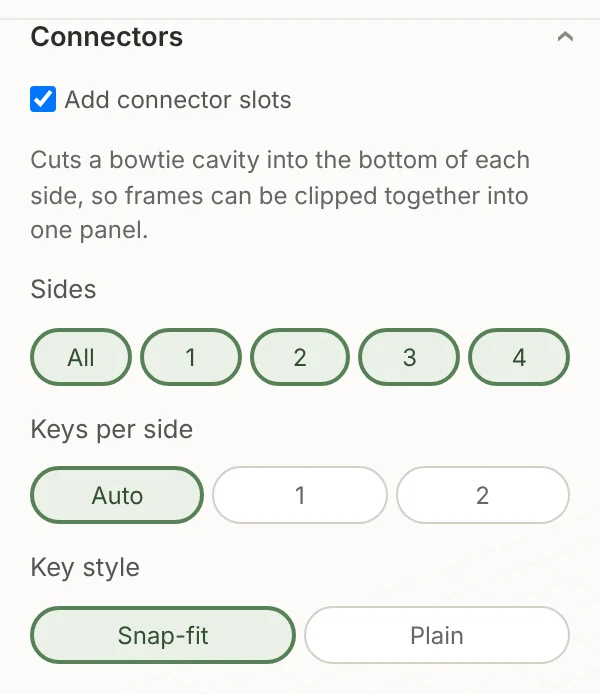
- Connectors cuts bowtie slots into the bottom of each side, so several frames clip together into one panel, for a multi-day trip or a series of peaks. Snap-fit keys click in with no glue; Plain keys are stronger and want a drop of glue.
- Screw holes cuts one or two holes near the top edge with a counterbore for the screw head, so the frame hangs flat on a wall screw.
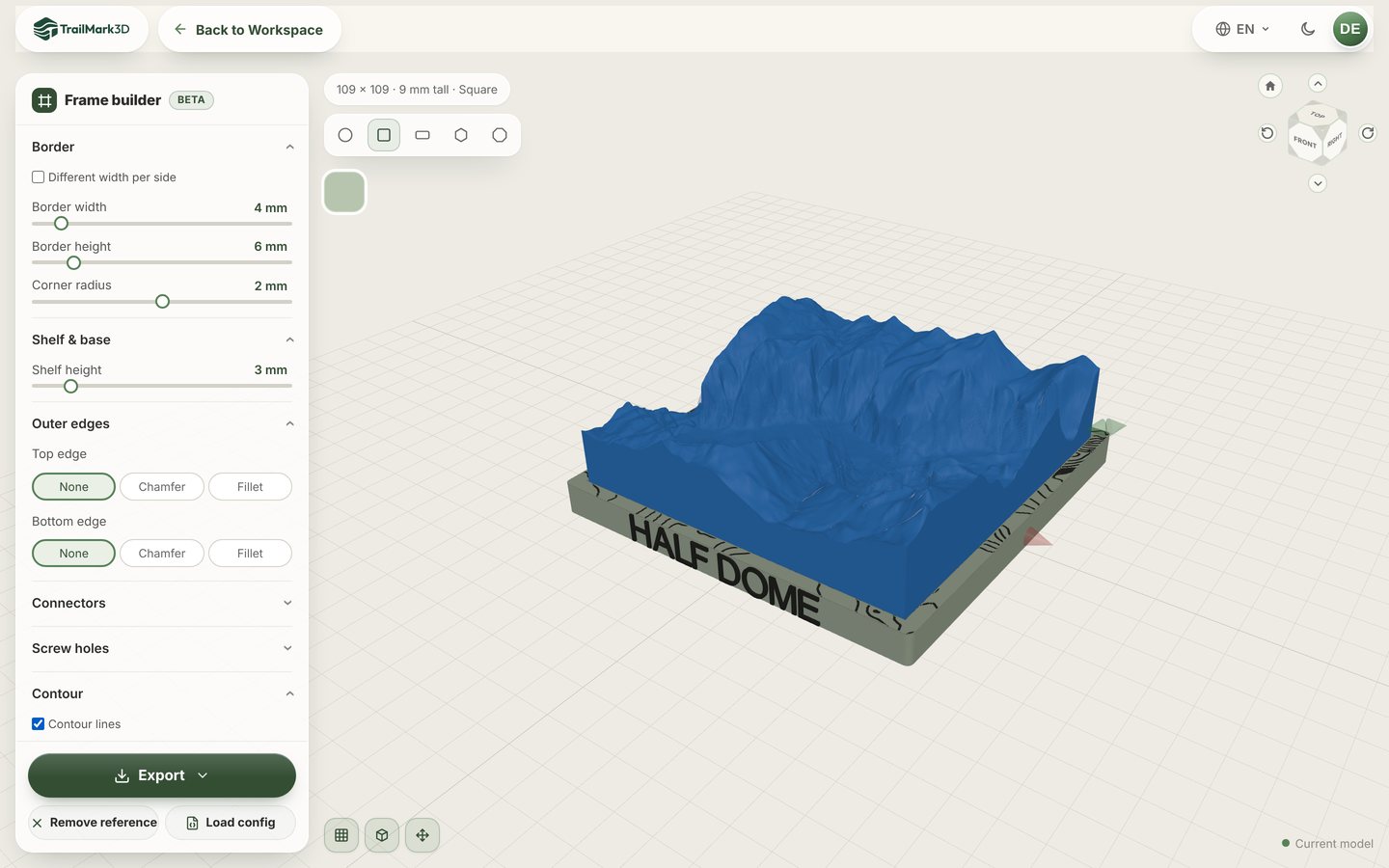
- Contour paints contour lines on the border and the base that carry on the lines of your model across the frame. They are color, so they need the 3MF.
Export and print
Click Export and pick the file: STL for a single-color frame, or 3MF with the frame and the text as separate parts in their own colors. Config (JSON) saves every setting, so you can make the same frame again for the next tile. Print the frame flat, opening up, with no supports, then press the tile in.
Frequently asked questions
Is the Frame Builder free?
Yes. The Frame Builder is free with a free account. On the free plan it opens while you still have model generations left that day (5 a day); Pro ($10 a month) opens it any time. It is in beta. See pricing.
Can I make a frame for a 3D printed race map?
Yes. Generate the race route from its GPX, click Create Frame, and add the race name, the date and your finish time as raised text on the border. A hexagon or an octagon frame reads well as a medal display next to the medal.
What size will the frame be?
The Frame Builder sizes the opening to your model with a 0.5 mm margin, and the frame grows outward by the border width. A 100 mm tile with a 4 mm border gives a frame about 109 mm across. Model margin sets a looser or tighter fit.
Can I frame a 3D printed puzzle?
Yes. For a jigsaw puzzle, Create Frame makes a tray sized to the assembled puzzle, printed on its own bed. See 3D printed map puzzle.
Can I join several frames together?
Yes. Turn on Connectors and pick the sides. The export includes the keys; print them flat with no support and press one into each seam until it clicks. Circles meet at a point, so connectors need a shape with flat sides.
Can I use my own font?
Yes. In the text panel, upload a TTF or OTF font, and it is kept in your browser for next time. The bundled fonts cover Latin letters, so for Chinese, Japanese or other scripts, upload a font that includes them; otherwise those letters print as a question mark.