3D printed map troubleshooting: fix a tight trail slot, a thin trail, flat terrain, water specks and warping
Fix the most common problems with 3D printed terrain maps from TrailMark3D. A trail that won't fit its slot, a trail too thin to print, terrain that looks flat, tiny water specks, an area too large, and corners that warp, each with the setting that fixes it.
In short
Most 3D printed map problems have a setting that fixes them. A trail piece that is too tight or too loose needs a different Slot Margin (0.2 mm by default; try 0.3 mm if it won't go in). A trail that breaks or vanishes needs a Trail Width of at least two nozzle widths. Flat-looking terrain needs a higher Vertical Exaggeration or a smaller area. Tiny water specks and hairline rivers go away with Min Water Size and Min Water Width. Warped corners are a slicer issue: print flat, with a brim and a clean bed. Every fix here is free.
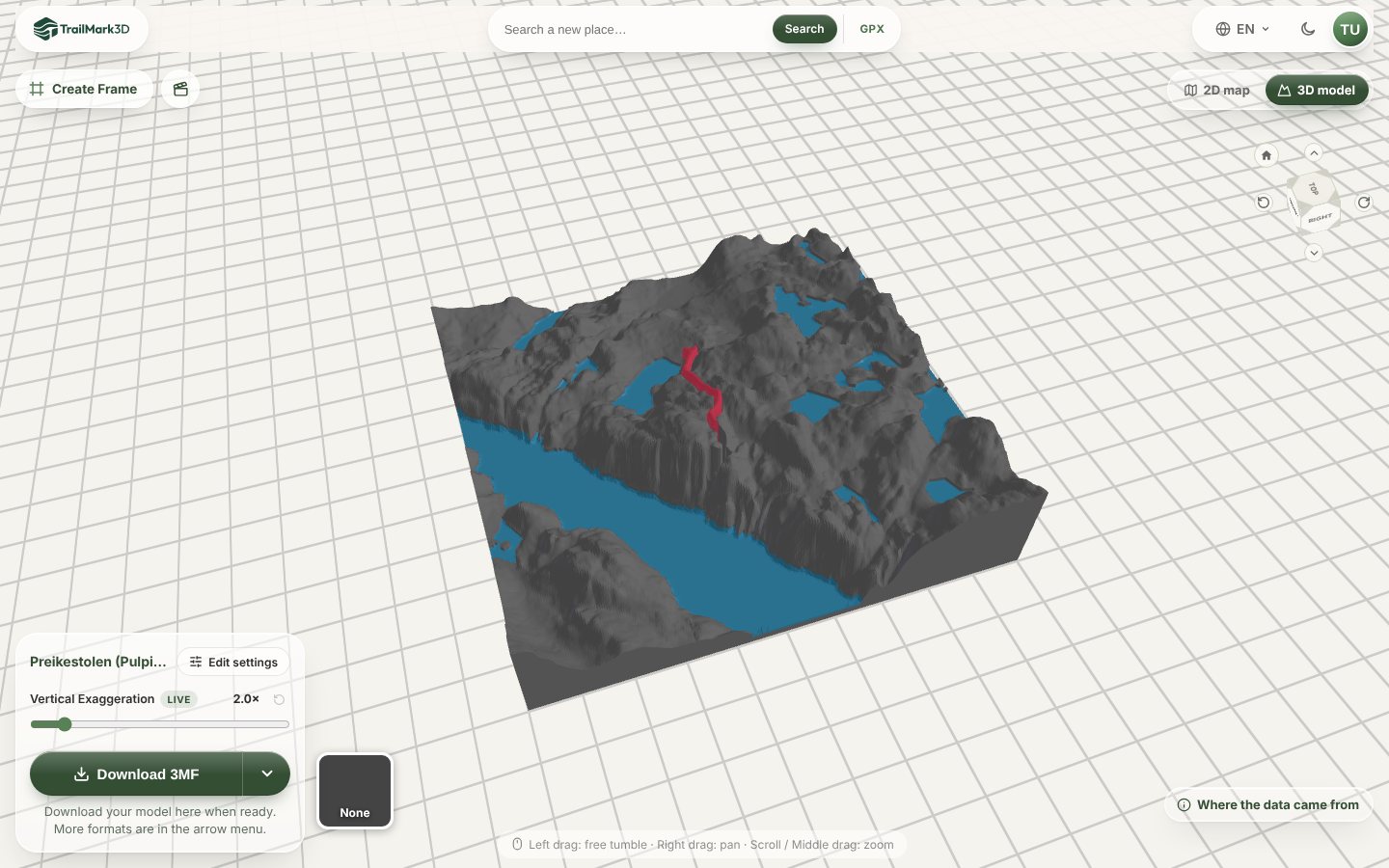
A 3D printed terrain map has a few parts that have to fit together: a terrain tile, a raised trail that drops into a slot, and often a separate water piece. When something goes wrong, it is almost always one of the same handful of problems, and each one has a setting in the TrailMark3D workspace that fixes it. This guide goes through them one by one, using the hike to Preikestolen (Pulpit Rock) above the Lysefjord in Norway as the example: a short trail with a fjord, lakes and steep cliffs, so every fix shows up on the model.
Open Trail Settings in the workspace
The trail piece won't fit its slot, or falls out
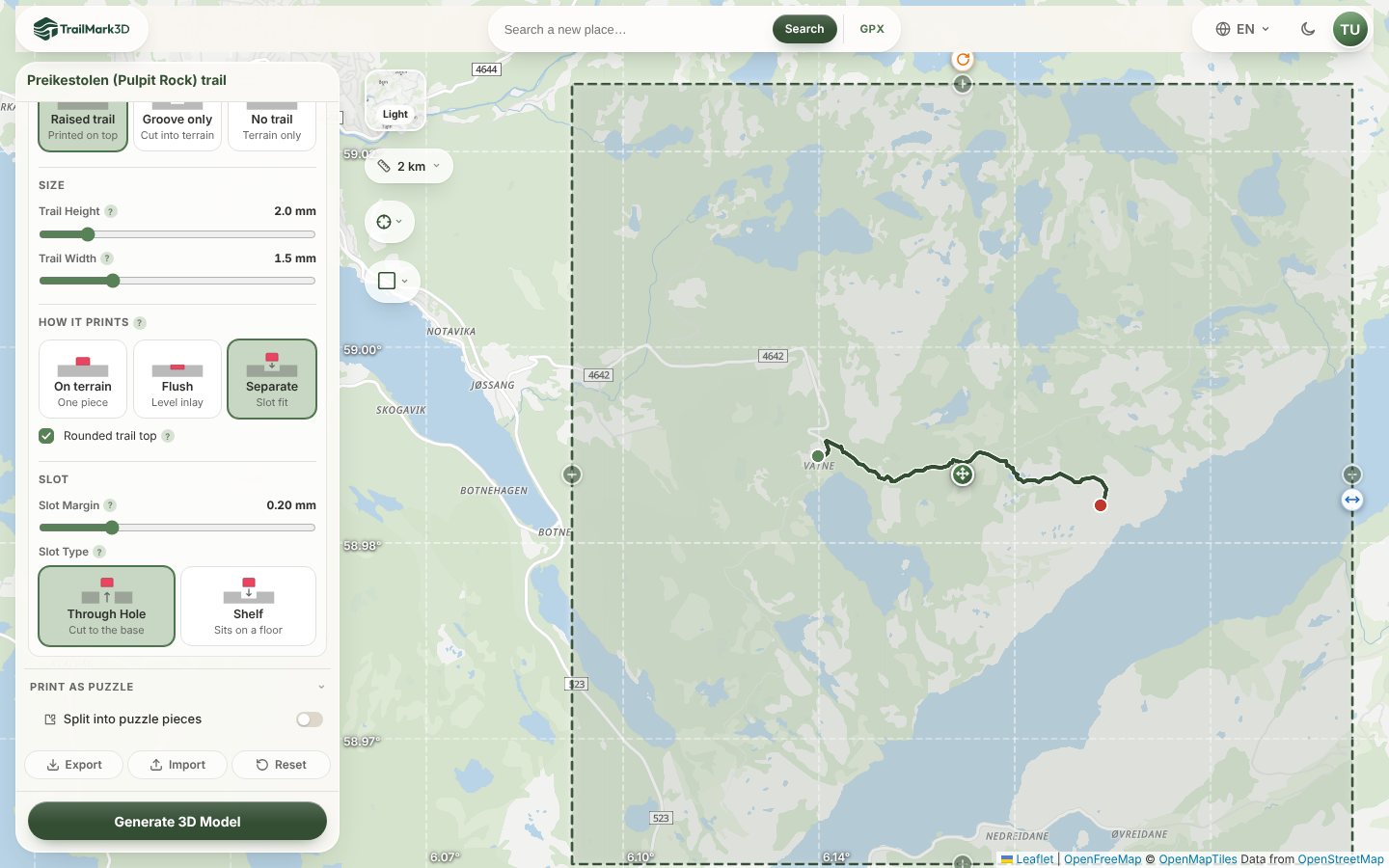
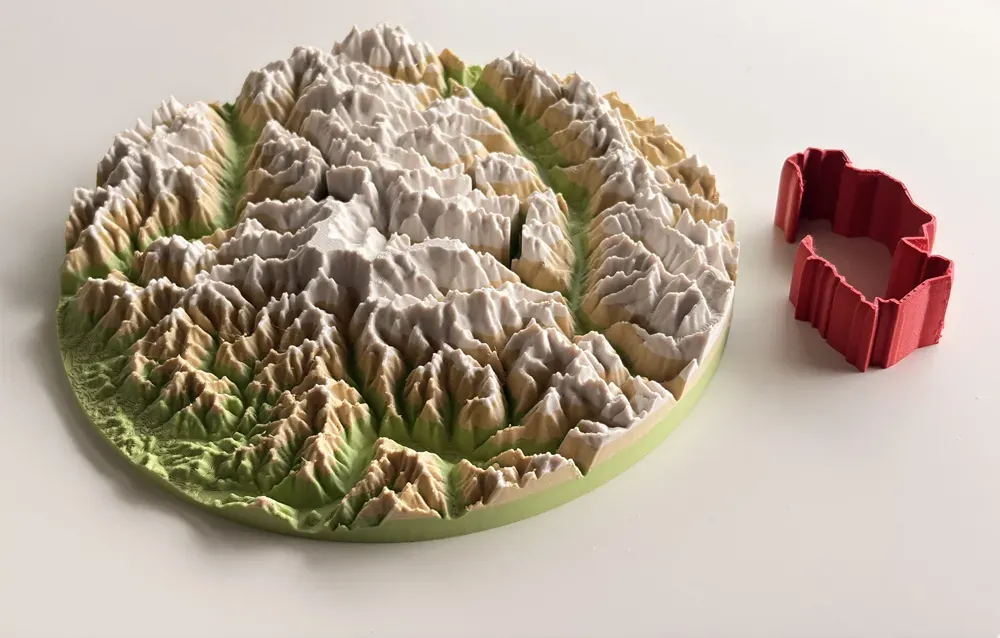
With How it prints set to Separate under Trail Settings, the trail prints as its own piece and drops into a slot cut into the terrain, so you can print it in another color without a multi-color printer. The gap between the two is the Slot Margin, 0.2 mm by default. If the trail won't go in, raise it to 0.3 or 0.35 mm; if it falls out when you turn the tile over, lower it to 0.1 or 0.15 mm. Printers differ by a tenth of a millimeter or two, so it is worth one small test print before a big one. Slot Type decides how deep the slot goes: Through Hole cuts down to the base, and Shelf (Pro) leaves a floor for the trail to sit on.
The trail is too thin, snaps, or disappears in the slicer
A trail narrower than about two nozzle widths prints as a single wobbly line or not at all, and your slicer may silently drop it. With a 0.4 mm nozzle, keep the Trail Width at 0.8 mm or more; the default 1.5 mm is safe on every common nozzle. A Trail Height of 1.5 to 2 mm makes the trail easy to see and stiff enough to handle as a separate piece. If a long, thin separate trail still breaks, switch How it prints to On terrain, which fuses the trail to the model in one piece, or to Flush, a flat inlay level with the surface. Rounded trail top gives a smoother line on top but has no effect on strength.
The terrain looks flat
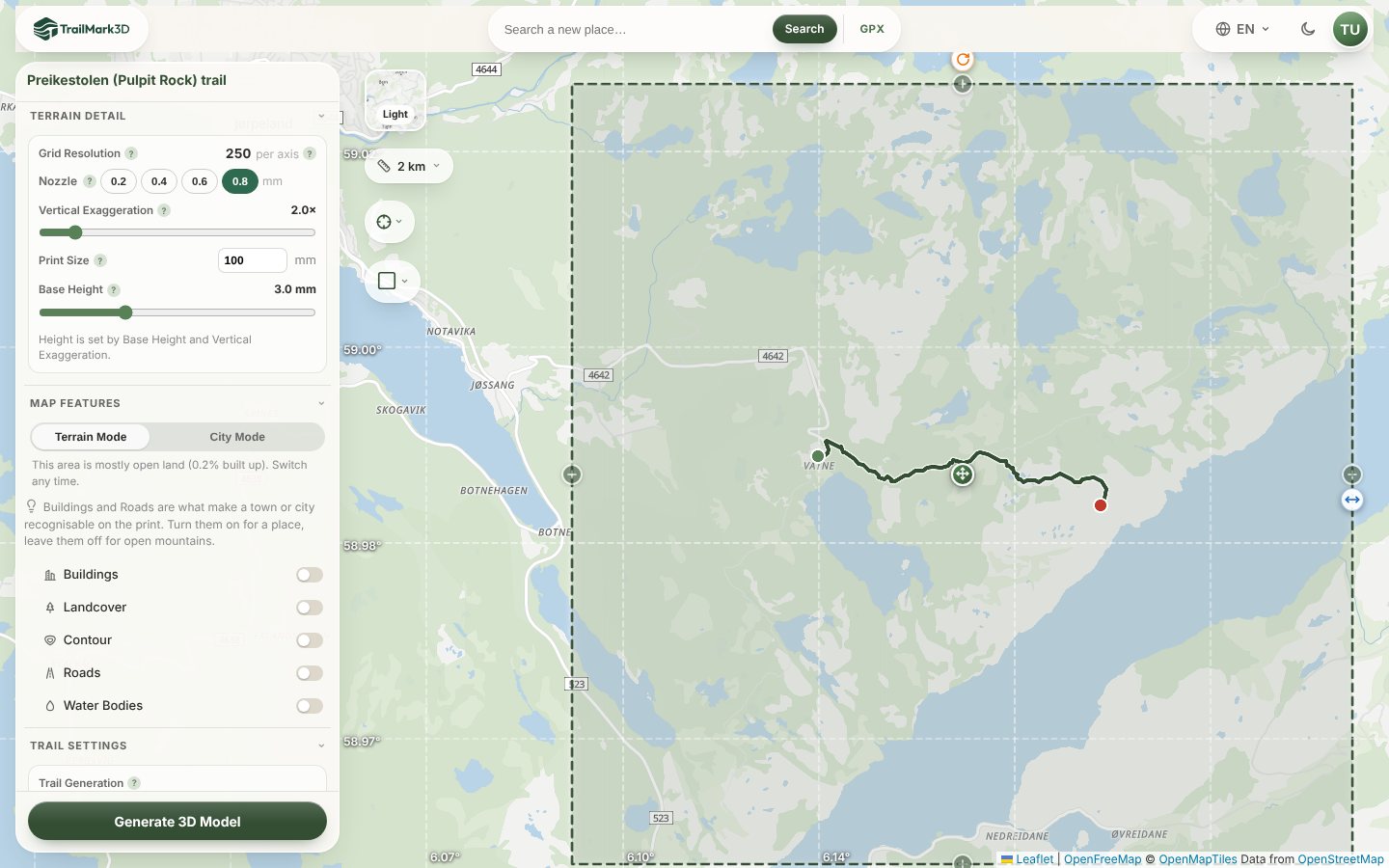
Real landscapes are much wider than they are tall, so a true-to-scale print often looks flat. Open Terrain Detail and raise the Vertical Exaggeration: 1.5× to 2× for high mountains, 2× to 3× for hills, and up to 4× or more for gentle country. It updates the 3D model live, so you can try values before you download. The other cause is too large an area: the same hill covers less of a 20 km tile than of a 5 km one. Drag the tile smaller on the map, or type a width into the label under it. A thicker Base Height (3 mm by default) does not add relief, but it makes the tile sturdier and leaves room for water and trail slots.
Tiny water specks, hairline rivers or a missing lake
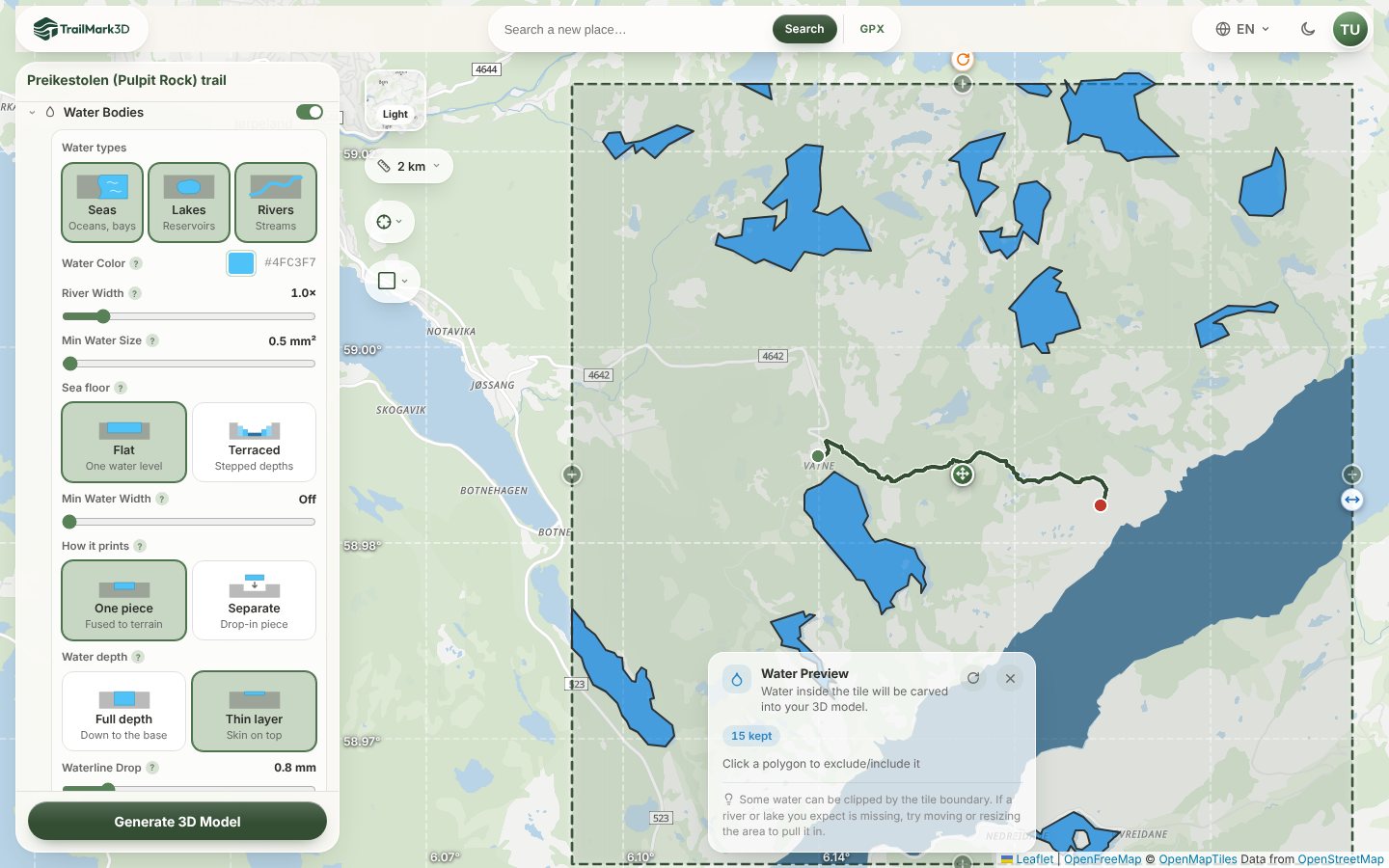
With Water Bodies on under Map Features, the water inside your tile is drawn on the map before you generate. Small ponds and mapping slivers turn into specks a fraction of a millimeter wide, and thin streams into lines too narrow for the nozzle. Min Water Size drops water smaller than an area on the print (0.5 mm² by default), and Min Water Width removes long thin channels that would print thinner than your nozzle. To keep a river and make it bolder instead, raise River Width. A lake that is missing is usually clipped by the tile edge: move or widen the tile on the map. Water needs a Base Height of at least 0.8 mm. If an area has so much water that it can't be built, the panel says "Too much water detail" and offers to turn Water Bodies off.
"Area too large", or the area stops at 10 km
Each plan has a widest area it can build: 200 km with a free account and 500 km on Pro. Past that, the panel shows "Area too large" with the limit, and offers to reduce the area or split it into tiles. Buildings have their own, tighter limit: with Buildings on, the area is held to 10 km wide, and the panel says so, because beyond that a building prints less than a millimeter tall. Turn Buildings off for a wider area. For a wide area, print it as extension tiles; for a city, frame a smaller area (3D print a city map).
The corners warp or lift off the bed
Warping is a slicer and printer issue, not a model issue, and a terrain tile is prone to it because it is a large flat slab. Print the tile flat on its base with no supports, clean the bed, and add a 5 to 8 mm brim. PLA at the usual bed temperature works well; avoid drafts. A thicker Base Height (4 to 5 mm) also makes the tile stiffer. Layer height, walls and infill for terrain are in STL or 3MF, and how to slice a terrain model.
Check the model in 3D before you print
Click Generate 3D Model and look the model over in the 3D viewer: zoom in on the trail and the water, and check that nothing you care about sits on the edge of the tile. The live Vertical Exaggeration slider is next to the download button. When it looks right, click Download 3MF.
Frequently asked questions
Is it free?
Yes. Every fix in this guide works on a free account: Slot Margin, Trail Width and Height, Vertical Exaggeration, Base Height, Min Water Width and River Width to preview, and STL and 3MF downloads for personal use, up to 5 models a day. A few options are Pro ($10 a month): raising Min Water Size, a Shelf slot, a separate water piece, and downloading a model with a non-default Min Water Width or River Width. See pricing.
What Slot Margin should I use?
Start with the default 0.2 mm. Most well-tuned FDM printers fit a trail at 0.2 to 0.3 mm. If the trail won't go in, add 0.05 to 0.1 mm; if it falls out, take off the same. Print one small tile as a test before a large map.
Why did my trail print as a jagged line?
It is too thin for your nozzle. Keep the Trail Width at two nozzle widths or more (0.8 mm for a 0.4 mm nozzle), or switch How it prints to On terrain so the trail is part of the model.
Should I print a terrain map with supports?
No. Print the tile flat on its base, the trail piece flat on its bottom, and a water piece flat as well. Nothing in a TrailMark3D model needs supports.
What layer height should I use for a terrain map?
0.12 to 0.16 mm shows the relief best; 0.2 mm is faster and fine for larger prints. A variable layer height in your slicer keeps the flat areas fast and the steep ones smooth.
Why does the model fail to generate?
Usually it is too much at once: a very large area with water on, or an area with thousands of small lakes. Make the area smaller, turn off Water Bodies or raise Min Water Size, and try again. If the map data sources are busy, wait a minute and click Generate again.