3D printed ski resort map: make a 3D model of your ski area with every run and lift
Make a 3D printed ski resort map with TrailMark3D. Search the resort, switch on Ski runs and Lifts, print each run in its grade color on snow-white terrain, and download an STL or 3MF. Includes areas for 18 famous ski resorts.
In short
Search the resort on the TrailMark3D home page and frame the ski area on the map. Under Map Features, switch on Roads, open Road types, click All off, then switch on the Ski runs grades you want and the Lifts. Each grade prints in its own color (blue, red and black for European grading) and the lifts share one. Set the terrain color to white, click Generate 3D Model and download the 3MF. A full piste map in grade colors needs Pro to download; on the free plan, print the runs in one color.
A trail map shows a ski resort from above. A 3D printed ski resort map shows it the way you ski it: the peaks you rode up to, the bowls, and every run winding down the slope in its own color. TrailMark3D builds the terrain from real elevation data, then raises the runs in their grade colors and the lifts on top, ready to print on a multicolor printer. It makes a souvenir of a ski trip or a gift for a skier or a snowboarder. This guide makes a 3D map of the Corviglia ski area above St. Moritz, Switzerland, and the table at the end gives the area for 17 more resorts.
Open St. Moritz in the workspace
Search the ski resort
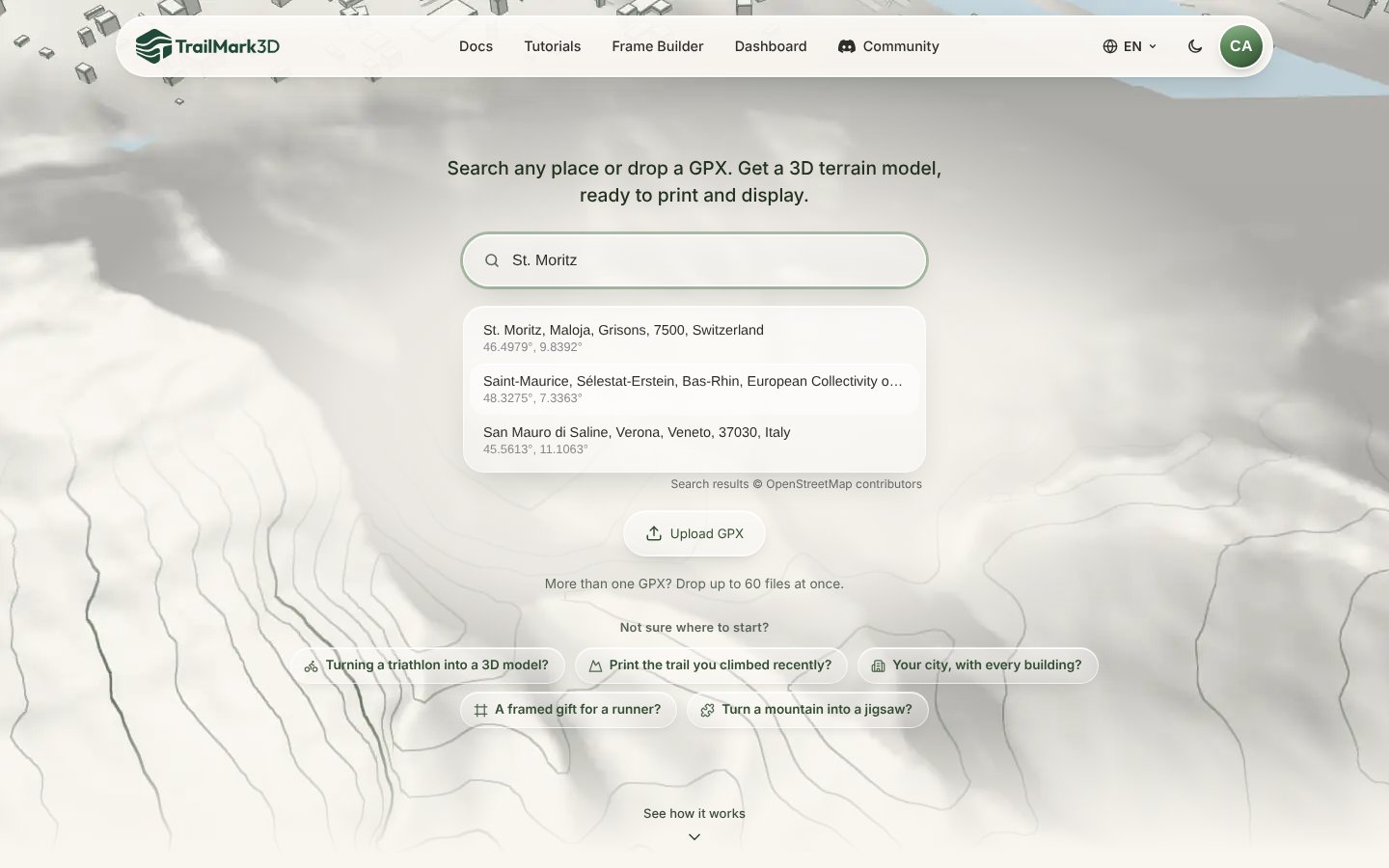
Go to the TrailMark3D home page and type the resort's name into the search box: "St. Moritz", "Whistler", "Niseko". Suggestions from OpenStreetMap appear with their coordinates; pick one and the workspace opens on it. For a resort that shares its name with a town, search a peak or a lift station instead, such as "Corviglia" or "Piz Nair", so the map opens on the slopes rather than in the village.
Frame the ski area
The workspace opens with a dashed tile on the map. Drag its center handle onto the slopes and its side handle to resize it, until the tile holds the runs you skied, from the top station down to the village. Most ski areas fit in a tile 6 to 15 km across; click the width under the tile to type it. A square fits a shadow box, and a circle or a hexagon makes a coaster-style keepsake. Keep it as small as the runs allow: the smaller the tile, the wider each run prints.
Switch on Ski runs and Lifts
Open Map Features and switch on Roads. Click Road types: the sheet lists every road and path class, plus two winter families, Ski runs and Lifts. Click All off first, so the model has no roads, then switch on the grades you want under Ski runs: Beginner, Easy, Intermediate, Advanced and Expert cover the pistes. Switch on Gondola / cable car, Chair lift and Drag lift / T-bar under Lifts. Close the sheet.
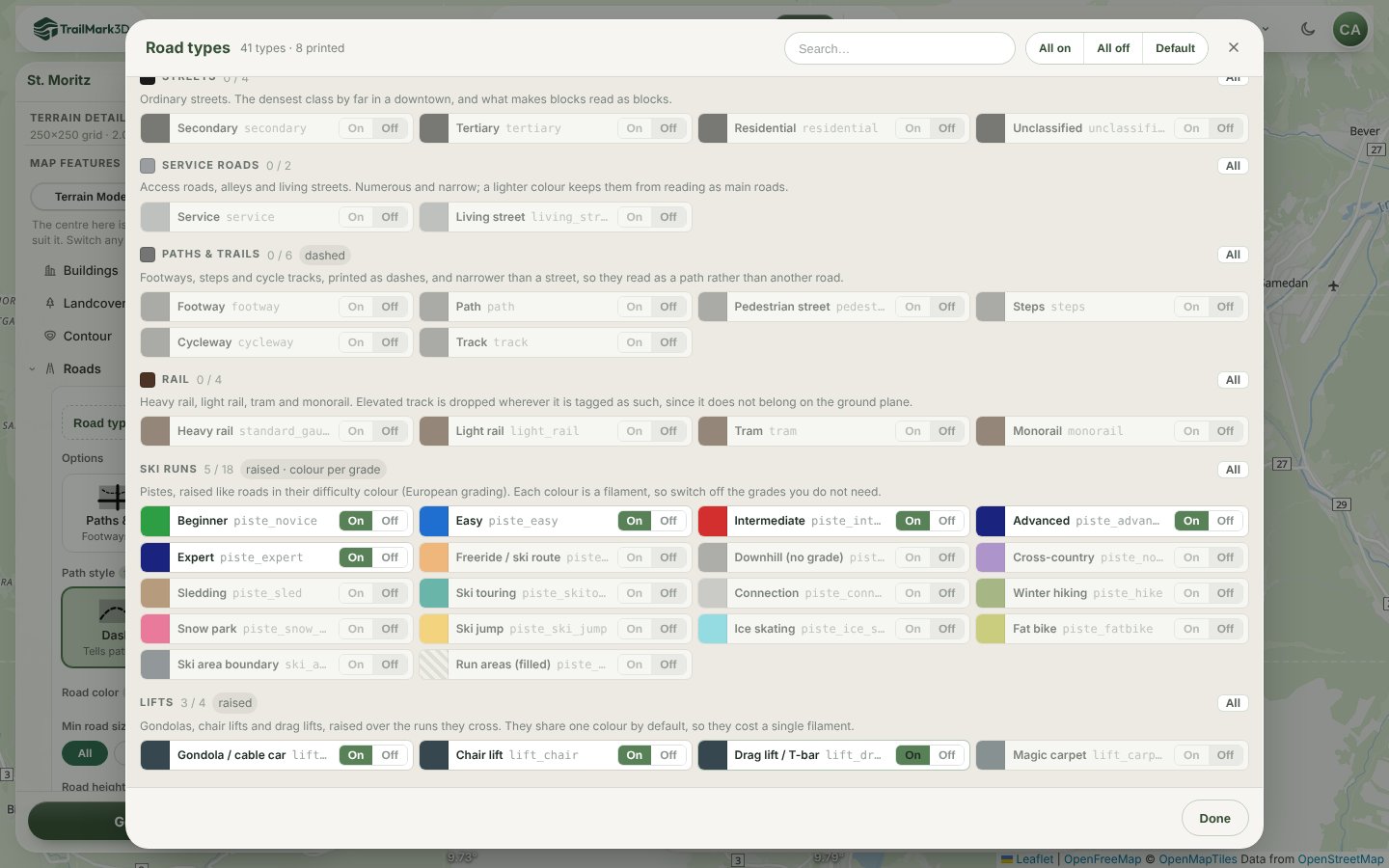
Each grade prints in its own color, in European grading: green for beginner, blue for easy, red for intermediate, and dark navy for advanced and expert (navy rather than black, so a black run never looks like a road). Freeride routes, cross-country tracks, sledding runs and snow parks have their own switches too. Click a swatch to change a grade's color, for example to the North American green circle, blue square and black diamond.
Pick the colors for the print
Each color is one filament, so plan the print before you build it. The Landcover colors card on the map lists the colors the model uses and the total. Click the Terrain swatch and pick a white, such as Ivory White, so the mountain reads as snow and the colored runs stand out on it. A typical piste map uses 5 colors: white terrain, the blue, red and navy runs, and the dark gray lifts, which share one color. Switch off grades the resort doesn't have, and the colors go down.
Set the relief and generate the 3D model
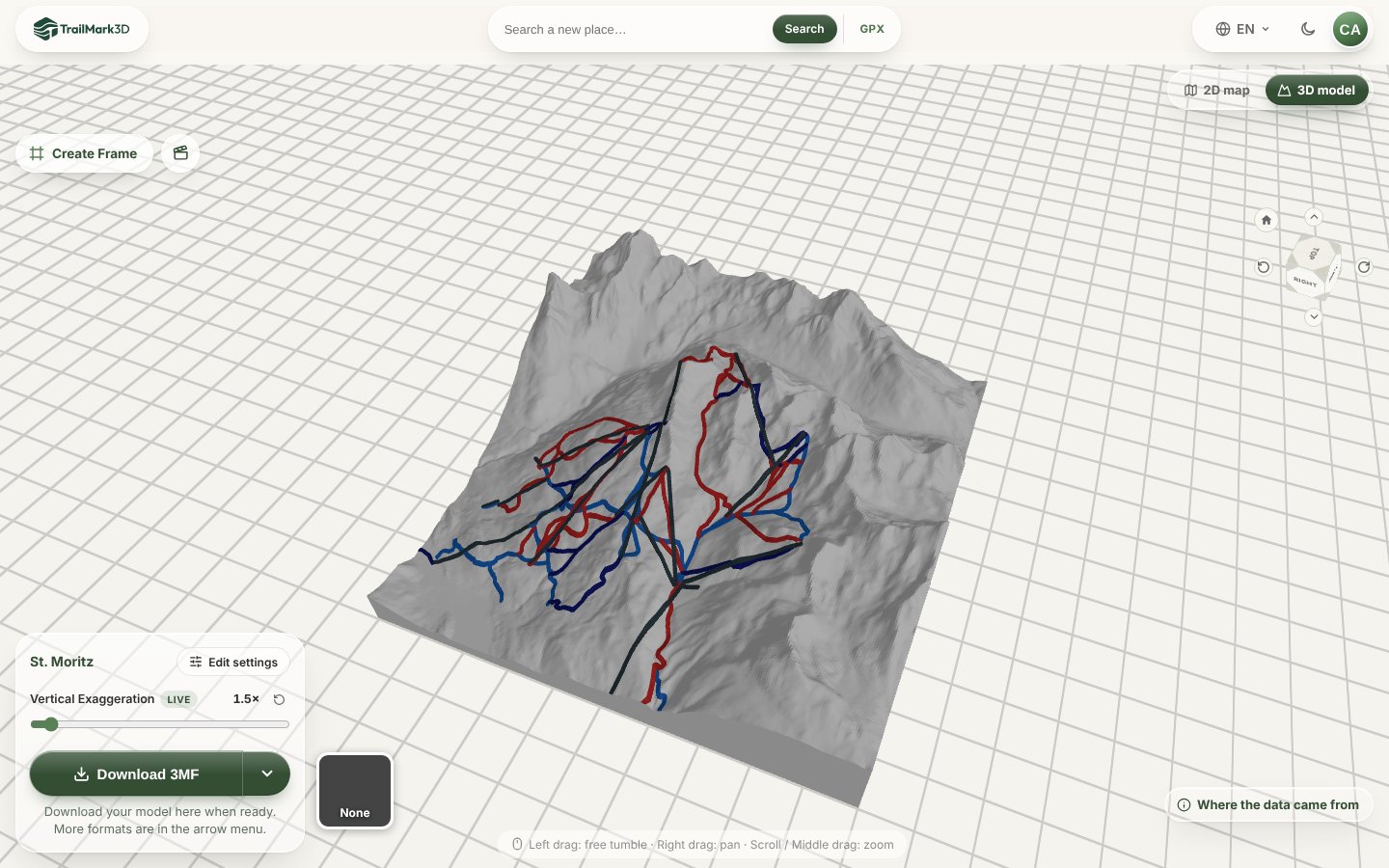
Open Terrain Detail. Ski areas are steep, so a Vertical Exaggeration of 1.5× keeps the peaks close to life while the valleys still read; go to 2× for gentle, rolling hills. Set the Print Size: 150 mm or more gives the runs room. Then click Generate 3D Model. The model opens in the 3D viewer with every run raised in its grade color and the lifts running straight up the slope above them.
Open Terrain Detail · Open the 3D viewer
Add the resort name and download
Click Create Frame above the 3D viewer to put the resort's name and the season on the border, such as "ST. MORITZ · 2026" (3D printed map frame shows how). Then click Download 3MF: each run grade, the lifts and the terrain arrive as separate parts with their colors assigned, ready for Bambu Studio or any slicer. Print flat with no supports, with a 0.2 mm layer height so the runs keep their shape.
Areas for famous ski resorts
Each link opens the resort in the workspace with the tile in the table. The width is the side of the tile; move it to fit the runs you skied.
| Ski resort | Country | Area to print | Width |
|---|---|---|---|
| St. Moritz | Switzerland | Corviglia and Piz Nair | 7 km |
| Zermatt | Switzerland | Gornergrat to the Matterhorn Glacier Paradise | 12 km |
| Verbier | Switzerland | Verbier to Mont Fort | 10 km |
| Chamonix | France | Brévent, Flégère and the Grands Montets | 14 km |
| Les 3 Vallées | France | Val Thorens, Méribel and Courchevel | 20 km |
| St. Anton am Arlberg | Austria | Valluga and the Galzig | 10 km |
| Kitzbühel | Austria | Hahnenkamm and the Streif | 12 km |
| Cortina d'Ampezzo | Italy | Tofana, Faloria and Cristallo | 14 km |
| Whistler Blackcomb | Canada | Both mountains and the Peak 2 Peak | 12 km |
| Vail | USA | The front side and the Back Bowls | 10 km |
| Aspen Snowmass | USA | Snowmass | 10 km |
| Park City | USA | Park City Mountain and Canyons | 10 km |
| Niseko United | Japan | Mount Annupuri and Grand Hirafu | 8 km |
| Hakuba Happo-one | Japan | Happo-one | 8 km |
| Baqueira-Beret | Spain | Baqueira, Beret and Bonaigua | 12 km |
| Sierra Nevada | Spain | Pradollano and the Veleta | 8 km |
| Valle Nevado | Chile | Valle Nevado | 8 km |
| Cerro Catedral | Argentina | Cerro Catedral above Bariloche | 8 km |
Frequently asked questions
Is it free?
Yes, to build and preview. With a free account you get 5 models a day, ski runs and lifts, the Frame Builder, and STL and 3MF downloads for personal use, in up to 2 print colors. A ski map in grade colors uses 5 or more colors, so downloading it needs Pro ($10 a month), which also allows commercial use. On the free plan, give every run and lift the same color in Road types: the model then has 2 colors, the terrain and the runs, and downloads for free. See pricing.
Where does the ski run data come from?
From OpenStreetMap, where skiers and resorts map the pistes with their difficulty. TrailMark3D reads the runs through Overture Maps and the lifts straight from OpenStreetMap. Most resorts in the Alps, North America and Japan are mapped in detail; if a run is missing, it is missing from OpenStreetMap, and anyone can add it there. Where the data came from, in the 3D viewer, lists the sources for each model.
Can I use North American trail colors?
Yes. In Road types, click the swatch of each grade and pick a new color: green for Easy, blue for Intermediate, and black or charcoal for Advanced and Expert. In OpenStreetMap, a North American green circle is mapped as easy, a blue square as intermediate and a black diamond as advanced, so the runs land in the right grade.
Why are some lifts missing?
Lifts come from OpenStreetMap through a separate service, and it is sometimes busy. If the lifts don't show up, the model is still built with the runs; click Generate 3D Model again a little later to add them.
What size should a ski resort print be?
150 to 200 mm across for a single mountain, and 250 mm or more for a big ski domain. A run is a few dozen meters wide on the snow; on a 150 mm print of a 7 km area, that is about 1 mm, which prints well. If the runs look thin, shrink the area or raise the Road width under Roads.
Can I add the route I skied?
Yes. Record the day with a ski app or a watch, export it as a GPX file (how to export a GPX), and upload it on the home page instead of searching the resort. Your route is raised in its own color on top of the runs.
Can I make it as a gift for a skier?
Yes. Pick the resort they ski most, add their name and the season with the Frame Builder, and print it in the resort's colors. It works just as well for a snowboarder, a ski instructor or a whole ski club.